Three distinct journeys an agency operator runs on the dashboard, broken down screen by screen:
(1) connect an ad platform and confirm data is flowing, (2) set goals and alerts then monitor
progress, and (3) build and share client reports. Each step lists what is on screen, what you can
do, and where each click leads. Screenshots use seed (mock) data.
RRoles and access
Every screen below is gated by role. Three agency roles exist.
The operator logs in, opens Connections, starts a platform connect, reviews the read-only
consent, authorizes at the provider, picks which account to connect, and lands back on
Connections where the first sync runs automatically and a green Connected badge appears.
Log in→Open Connections→Click Connect Account→Review consent→Authorize at provider→Select account(s)→Auto-sync runs→Connected
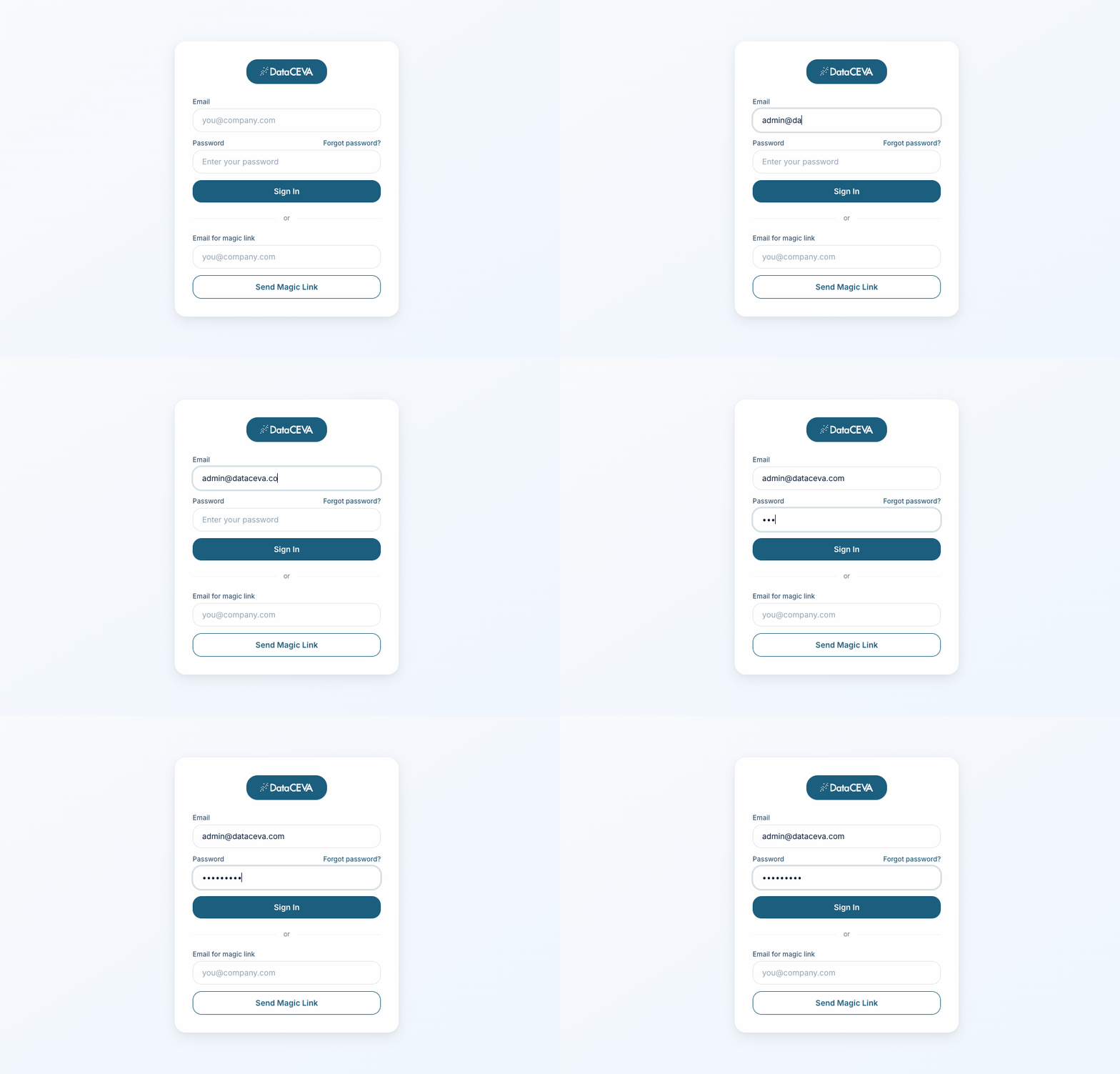
1Login
/login
On screen
Brand logo, email + password fields
"Forgot password" link, and a magic-link option below the divider
What clicks do
Sign In → /dashboard (portal users route to /portal)
Send Magic Link → emails a one-click sign-in link
Forgot password → emails a reset link
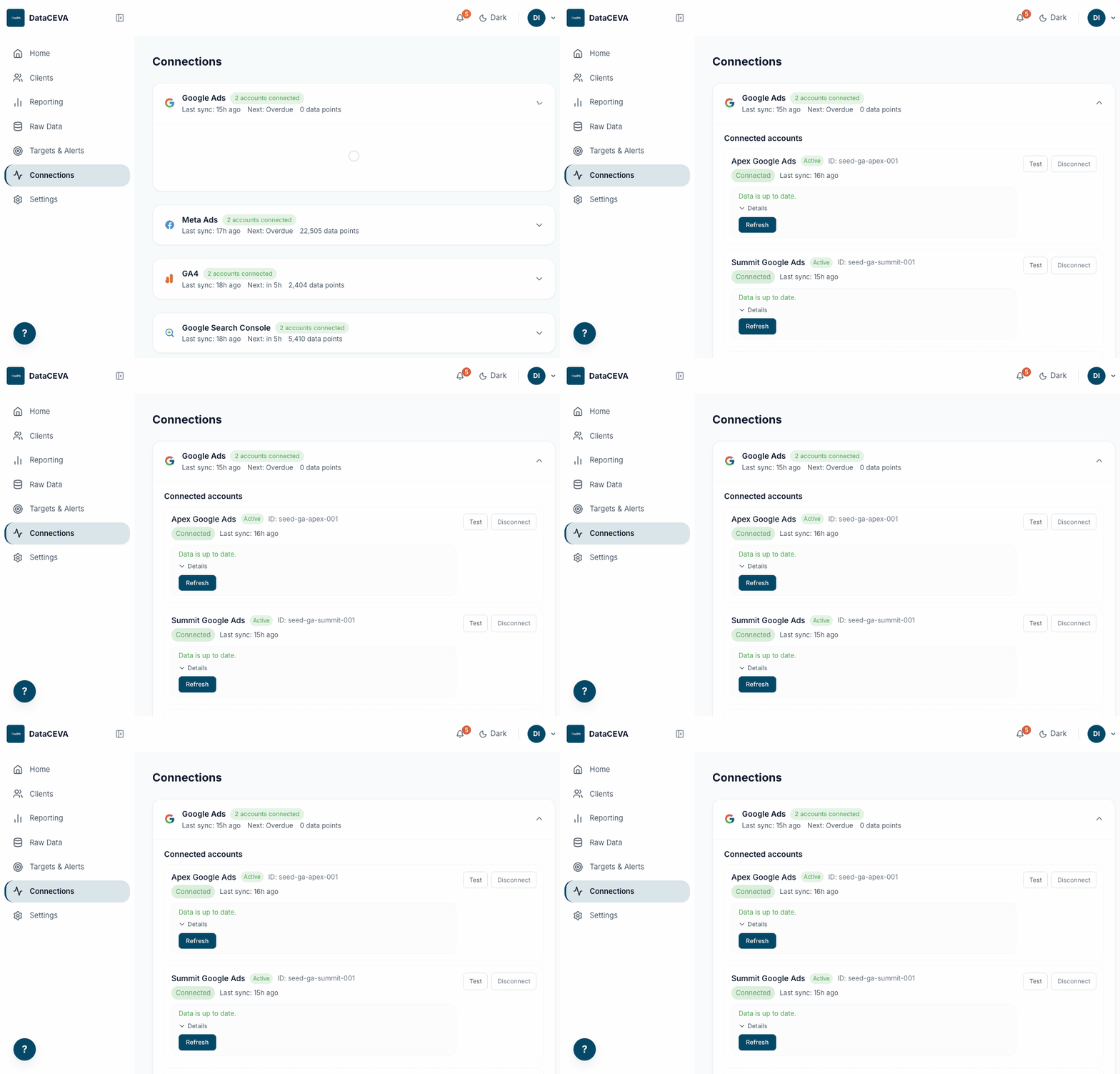
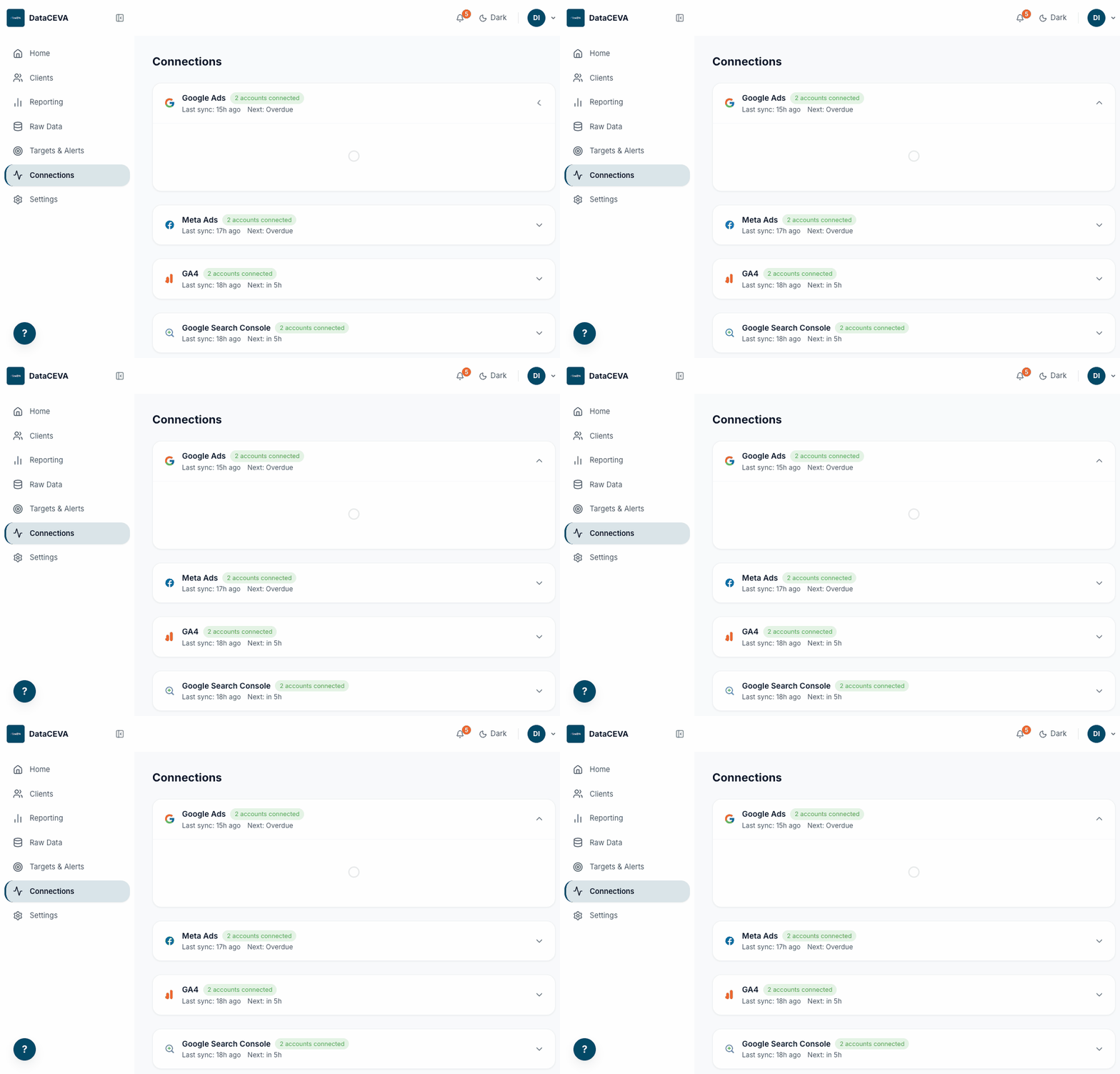
2Connections (starting point) edit: admin
/pipeline-health
On screen
One collapsible card per platform: Google Ads, Meta Ads, GA4, Search Console, Basis, TikTok
Before connecting, a card reads "No accounts connected" with a Connect Account button
Each card header shows last sync time, next sync, and data-point count once connected
What you can do
Connect Account → opens the consent modal (next screen)
Members see a read-only banner: connect, sync, and disconnect are hidden
Basis opens an API-key form instead of OAuth
Representative mockup, not a live screenshot
LightAD
Connect Google Ads×
Read-only access. We never change your campaigns.
What will happen
1. You are redirected to Google to sign in 2. You grant read-only access 3. Return here to select which ad account to connect
Permissions we request
🛡 View your Google Ads campaigns and metrics (read-only)
Connect with GoogleCancel
3Connect consent modal
/pipeline-health → Connect Account
On screen
Title "Connect {platform}" with four sections: What you'll need, What will happen, Permissions we request, and a notice box
This is purely informational; it does not pick an account yet
What clicks do
Connect with Google (label varies: "Connect with Facebook", "Connect GA4", "Connect with TikTok") → redirects to the provider
Cancel / X → closes, nothing changes
Representative mockup, not a live screenshot
Select Google Ads Account
Choose which account to connect:
☑Bloom BoutiqueID: 412-555-0188
☑Summit Real EstateID: 730-441-9920
☐Apex DigitalID: 880-122-7741
Connect 2 accountsCancel
4Select account (after authorizing)
/oauth-callback (returns from provider)
On screen
First a "Connecting to Google..." spinner while tokens are exchanged
If several accounts are accessible, this multi-select picker appears (GA4 says "Select GA4 Property", GSC "Select a site")
What happens
Connect N accounts → saves, then returns to Connections
Exactly one account auto-connects (no picker); zero shows "No accounts found" with a retry link
Denying consent shows "Permission denied" with next-step guidance
Representative mockup, not a live screenshot
LightAD
Connections
Google Ads1 account connectedLast sync: just now
Bloom BoutiqueID: 412-555-0188ConnectedRefresh
The first sync starts on its own. Later, expired tokens show "Reconnect needed"; failed syncs show "Sync Failed".
✓ Connected. Fetching your data now...
5Connected & confirmed
/pipeline-health
How you know it worked
Green "1 account connected" pill and a Connected badge on the account row
A "Last sync" time appears, and a toast reads "Connected. Fetching your data now..."
The 90-day Sync Health strip and sync history begin to fill in
What you can do
Refresh / Sync now → pulls fresh data immediately
Test → checks the connection is still valid
+ Add Account → connect another account on the same platform
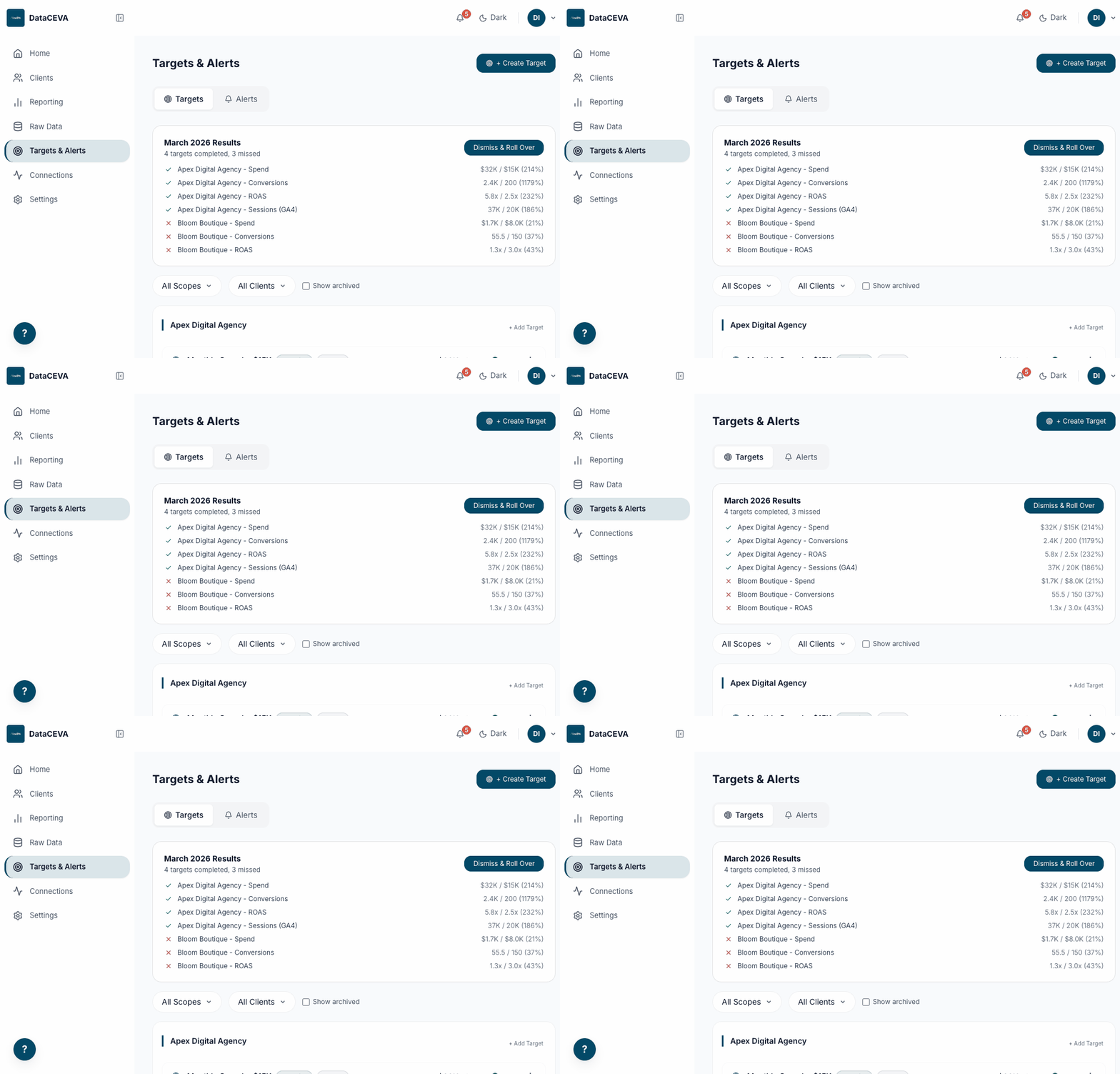
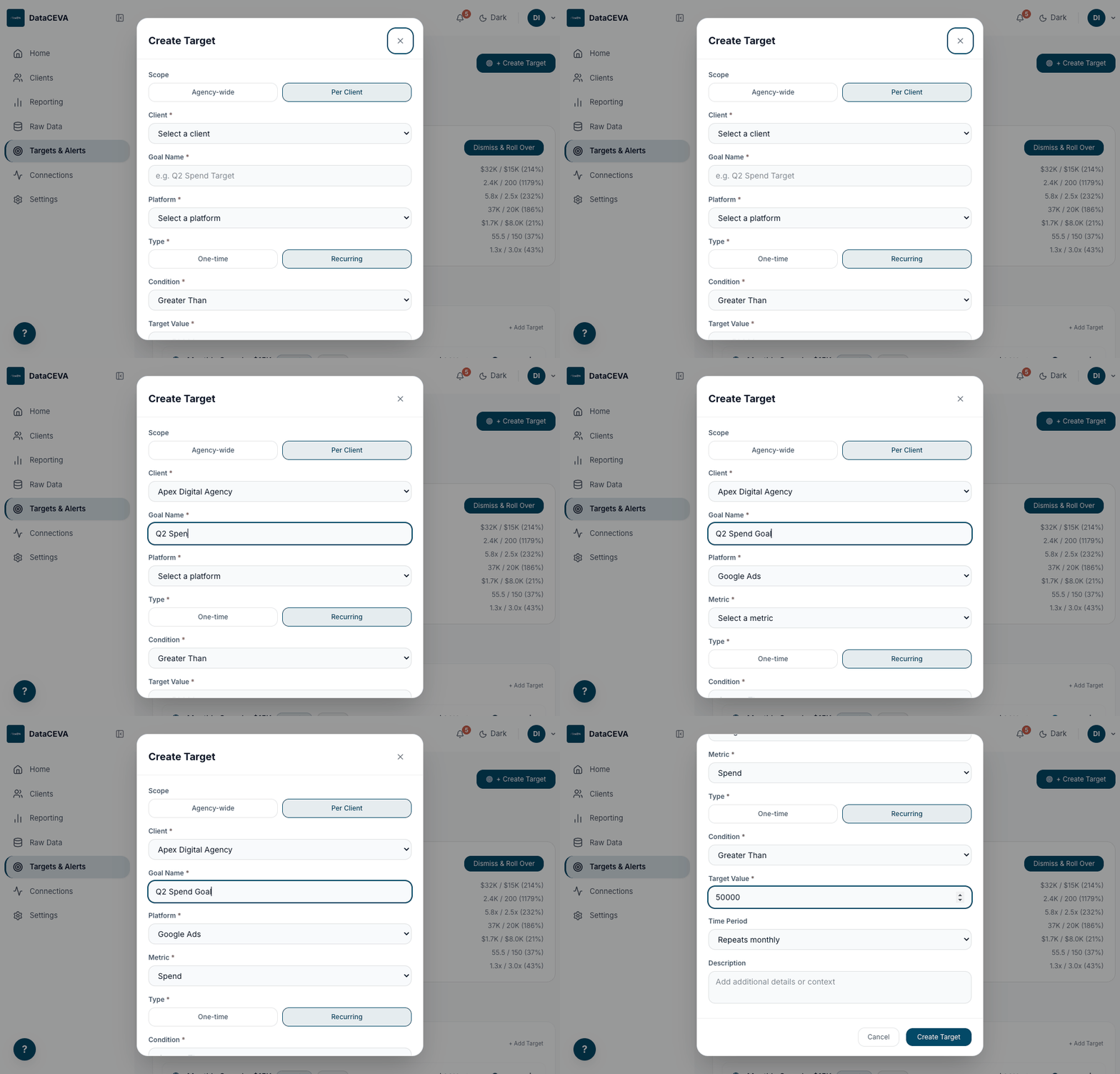
2Set targets & alerts, then monitor
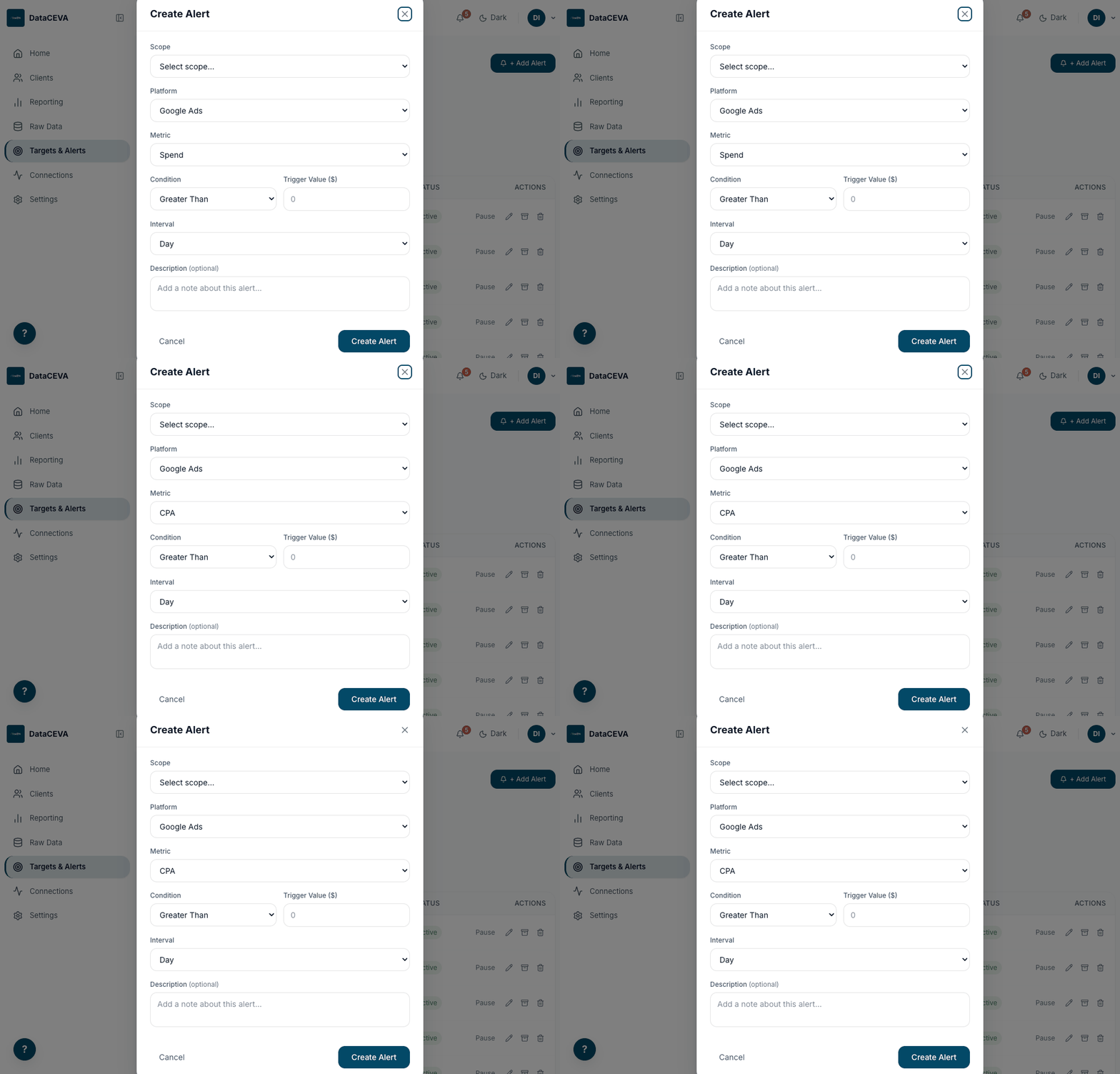
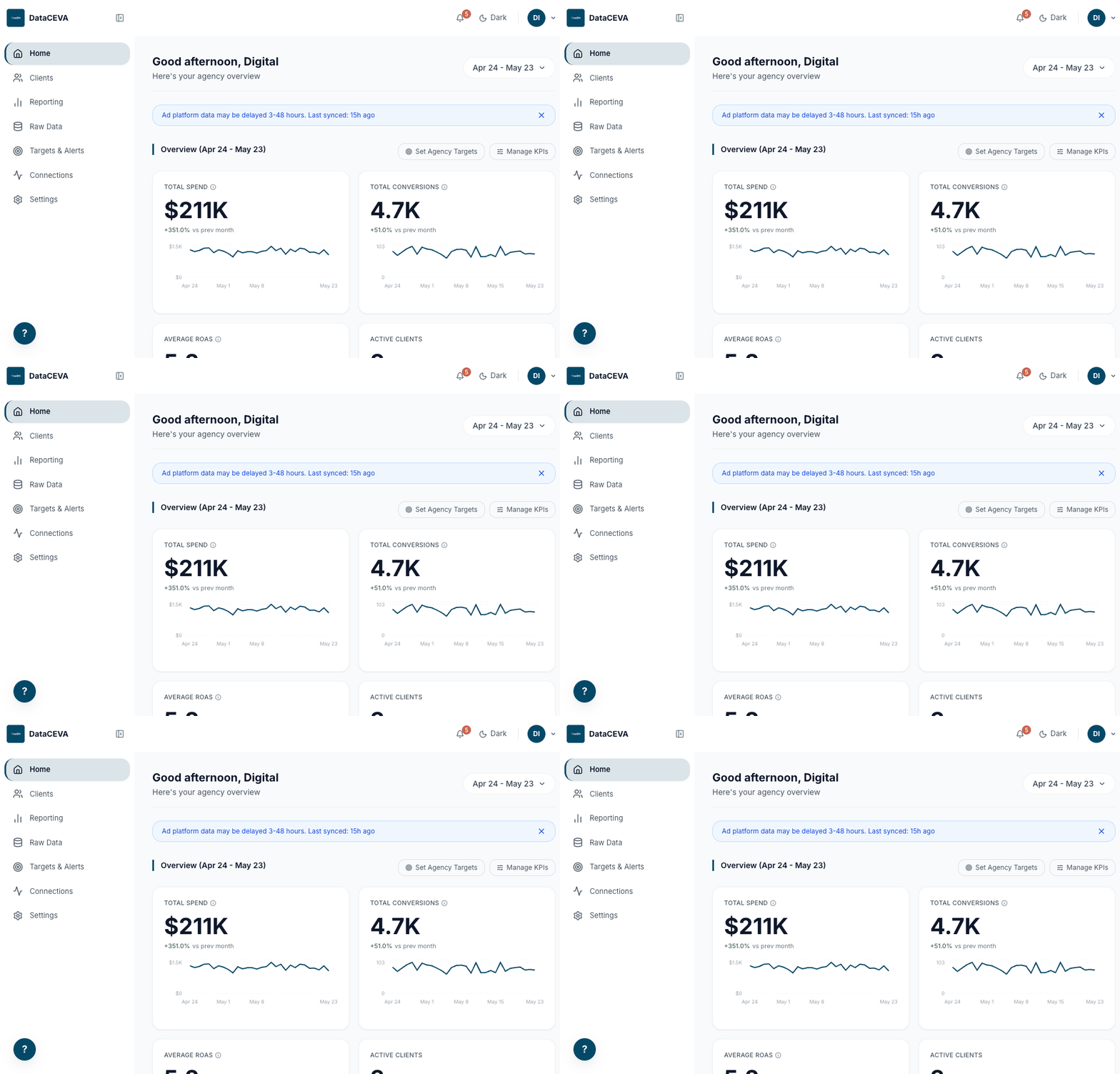
With data flowing, the operator opens Targets & Alerts, creates a goal, adds a threshold
alert, then watches progress on the home dashboard and reacts to alerts as they fire.
Open Targets & Alerts→+ Create Target→Set scope, metric, value→Alerts tab→+ Add Alert→Monitor on Home→Alert fires
Representative mockup, not a live screenshot
LightAD
Targets & Alerts
+ Create Target
TargetsAlerts
Spend > $50,000RecurringMonthly$41,280 / $50K
ROAS > 4.0xRecurring4.6x / 4.0x
CPA < $30Recurring$27.40 / $30
Conversions > 1,200Recurring980 / 1,200
Grouped by Agency-wide and per client. Green dot = on track, red = behind. Lower-is-better metrics (CPA) flip the comparison.
Meta spend over $5,000 this week Agency · 5h agoView
View all alerts
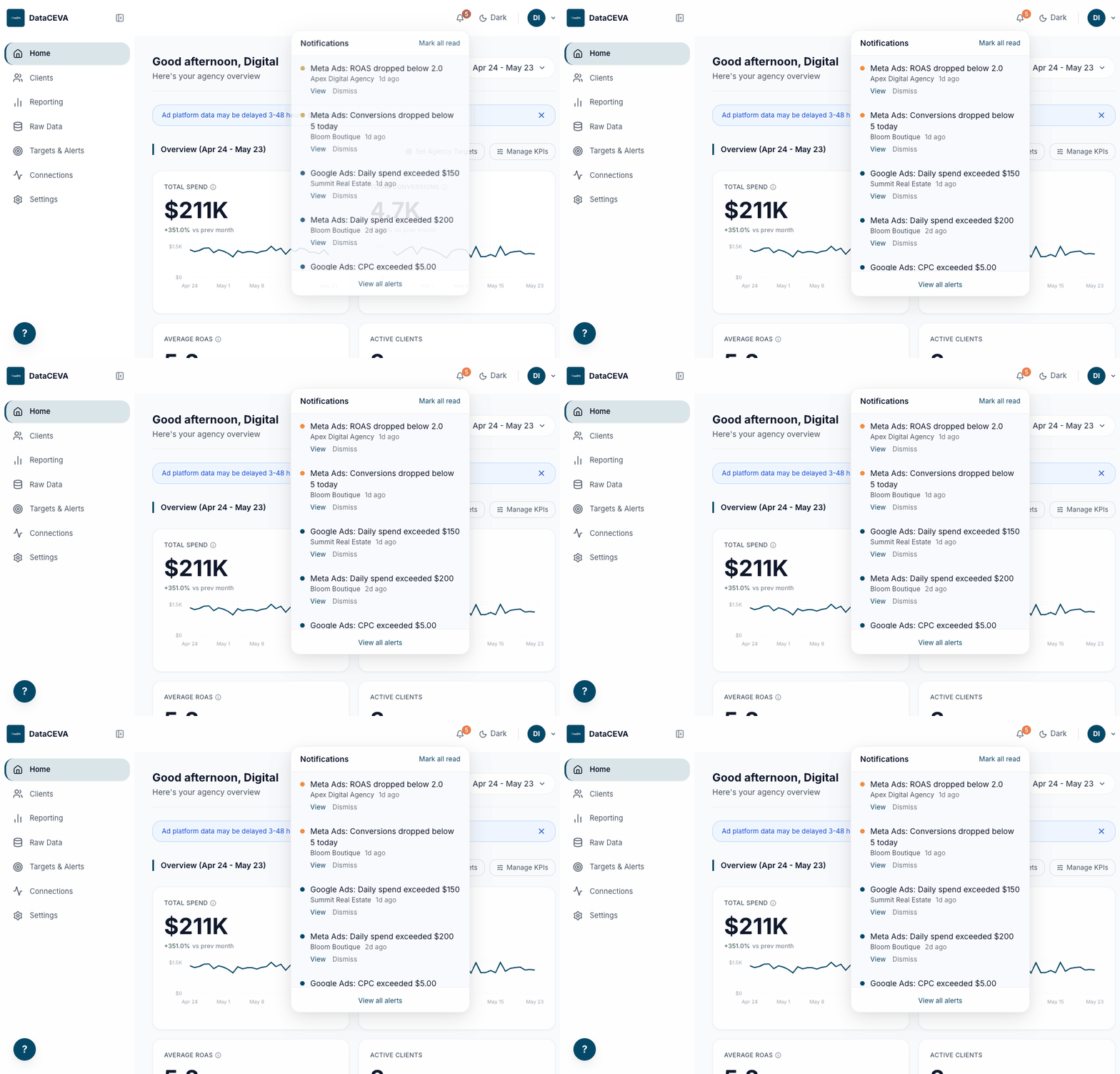
6Notifications (alert fired)
top bar bell, on any dashboard route
On screen
Bell with an orange unread count; dropdown headed "Notifications"
Each item: a severity dot (red error / amber warning / blue info / green success), the message, client, and relative time
Empty state reads "No notifications -- all clear"
What clicks do
View → marks read and opens /targets?tab=alerts
Dismiss → removes the item; Mark all read clears the count
View all alerts → the Alerts tab
3Build & share reports
The operator filters Reporting to a client, generates a report now or schedules a recurring
one, reviews the print-ready output, then opens the client and grants read-only portal access.
Open Reporting→Select a client→Generate Report→Sections + delivery→Or schedule recurring→Report opens→Open client→Invite to portal
Representative mockup, not a live screenshot
LightAD
Reporting
📄 Generate Report
Bloom Boutique ▾All Platforms ▾Apr 24 - May 23 ▾
Key Metrics
Spend
$41,280
Conversions
980
ROAS
4.6x
CTR
3.1%
Ads Performance
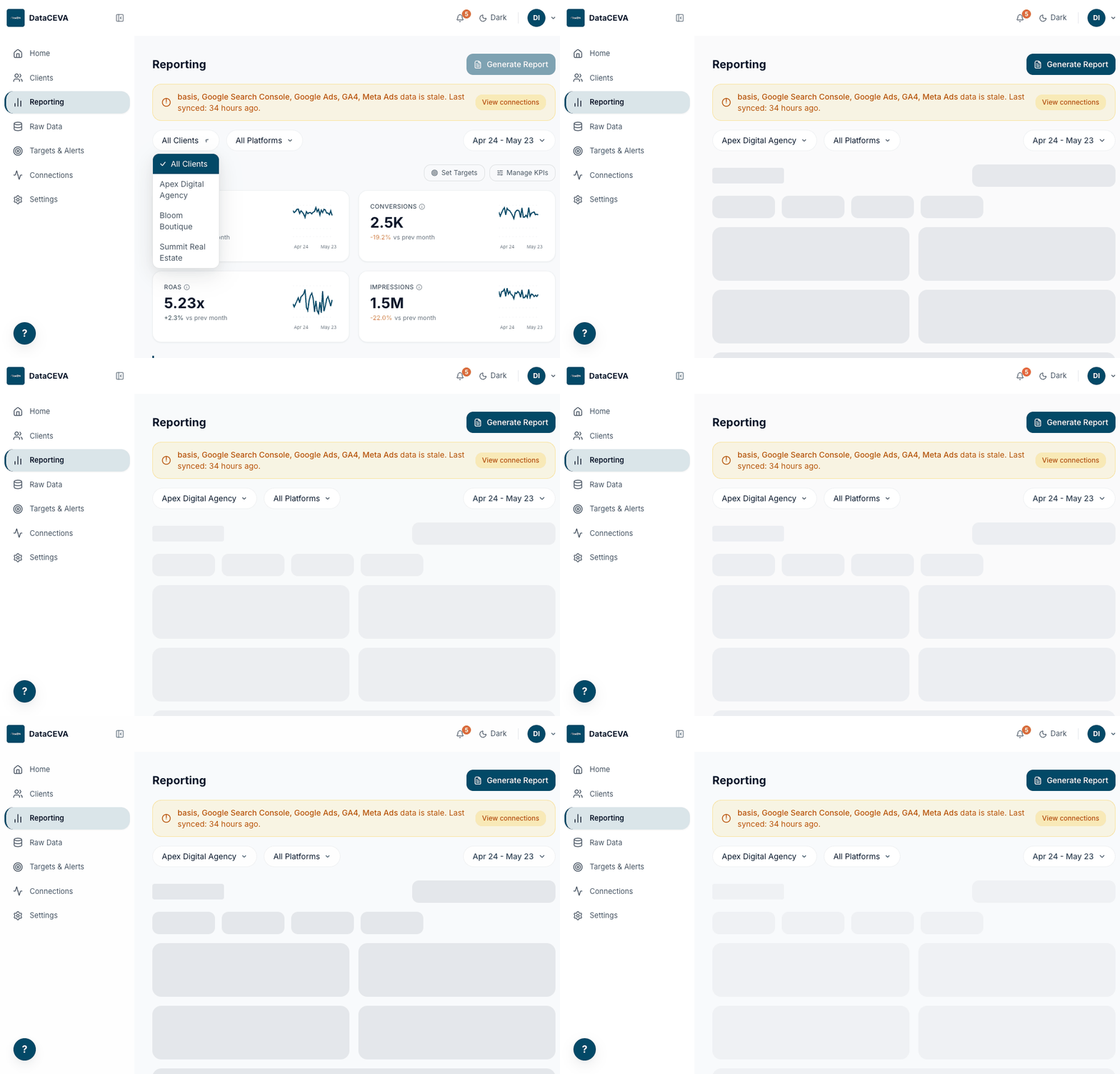
1Reporting generate: admin/manager
/reporting
On screen
Filters: client (All Clients), platform (All Platforms), and a date-range picker
Sections: Key Metrics, Ads Performance, Website Performance (GA4), SEO (GSC), and a Reports panel when a client is selected
What you can do
Generate Report → opens the modal; disabled until a client is selected (tooltip "Select a client")
Switch filters to drill in; there are no per-client pages
Representative mockup, not a live screenshot
Report×
Generate NowSchedule
Client
Bloom Boutique
Date range
Last 7 DaysLast 30 DaysThis MonthLast MonthCustom
Include sections
☑ Executive Summary☑ Google Ads☑ Meta Ads☑ GA4☑ SEO
Delivery method
◉ Open in browser (print to PDF) ◯ Download PDF
Generate ReportCancel
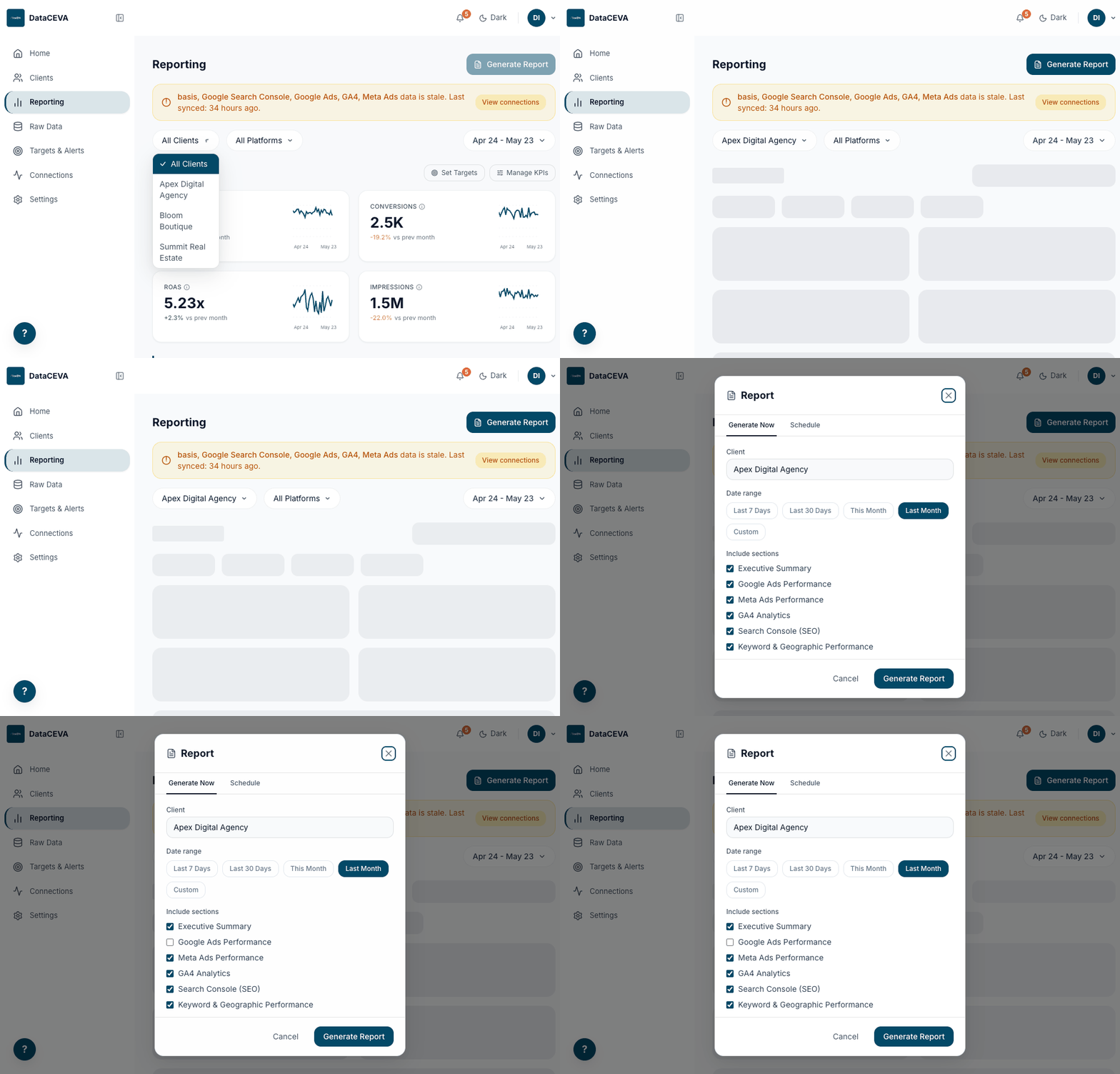
2Generate Now
/reporting → Generate Report
On screen
Tabs: Generate Now and Schedule; client shown read-only
Date range presets (or Custom), and seven section checkboxes (all on by default)
Delivery: Open in browser (print to PDF) or Download PDF
What clicks do
Generate Report (browser) → opens /report/:clientId in a new tab
Generate Report (PDF) → renders via the PDF service ("Generating your report...")
Representative mockup, not a live screenshot
Report×
Generate NowSchedule
Schedule name
Monthly Performance Report
Frequency
◯ daily ◉ weekly ◯ monthly
Day
Monday ▾
Time
09:00
Timezone
America/Chicago ▾
Date range in report
Last 30 Days ▾
Recipients
jane@bloom.com
Save ScheduleCancel
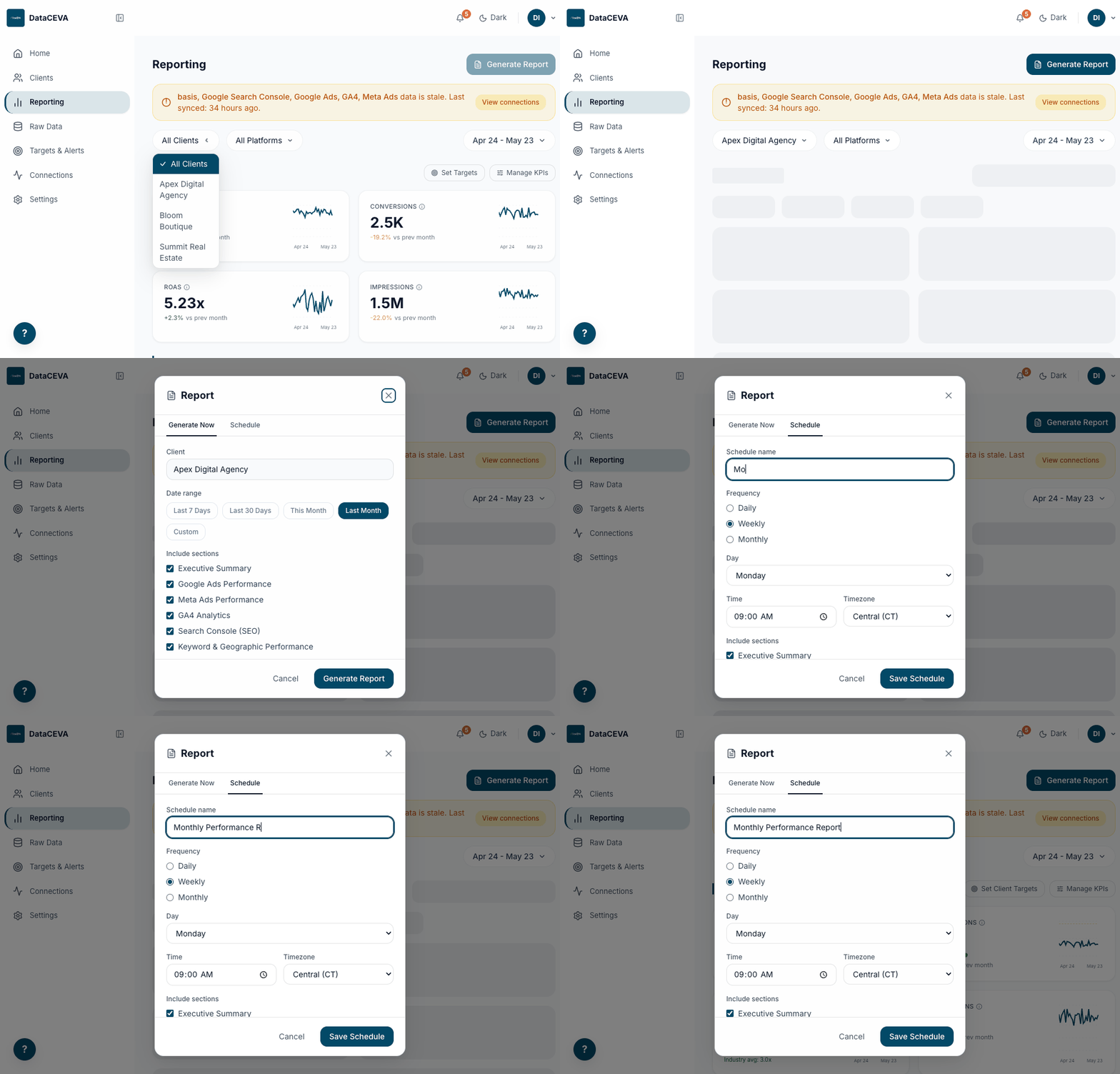
3Schedule (recurring email)
/reporting → Generate Report → Schedule
Fields
Schedule name, Frequency (daily/weekly/monthly), Day (weekly) or Day of month (monthly)
Time + Timezone, Include sections, Date range in report
Recipients: one email per line
What clicks do
Save Schedule → the system emails the PDF automatically on cadence
Saved schedules appear in the Reports panel on the Reporting page
Representative mockup, not a live screenshot
← BackPrint / Save as PDF
Bloom Boutique
Digital Marketing Report
Apr 24 - May 23, 2026
Performance Overview
Total Spend
$41,280
Conversions
980
ROAS
4.6x
Sessions
22,140
Spend Over Time
4Generated report (print / PDF view)
/report/:clientId
On screen
White-label cover: agency logo and colors, "Digital Marketing Report", client name, date range
Performance Overview, then Google Ads, Meta Ads, Website Analytics (GA4), SEO, and All Campaigns sections
No "Agency OS" branding anywhere; only the agency's identity
What you can do
Print / Save as PDF → the browser print dialog
← Back → returns to /reporting
Representative mockup, not a live screenshot
LightAD
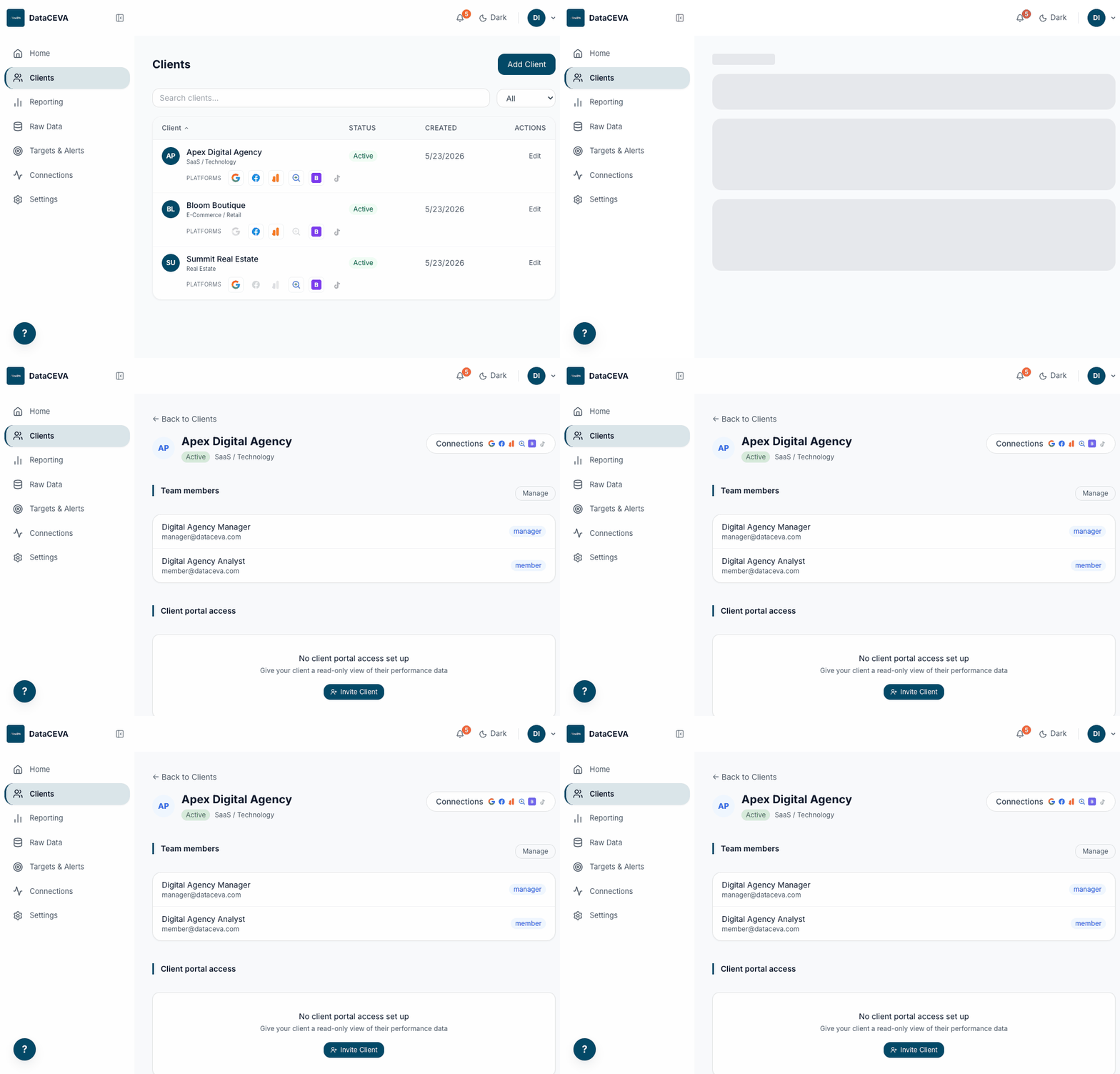
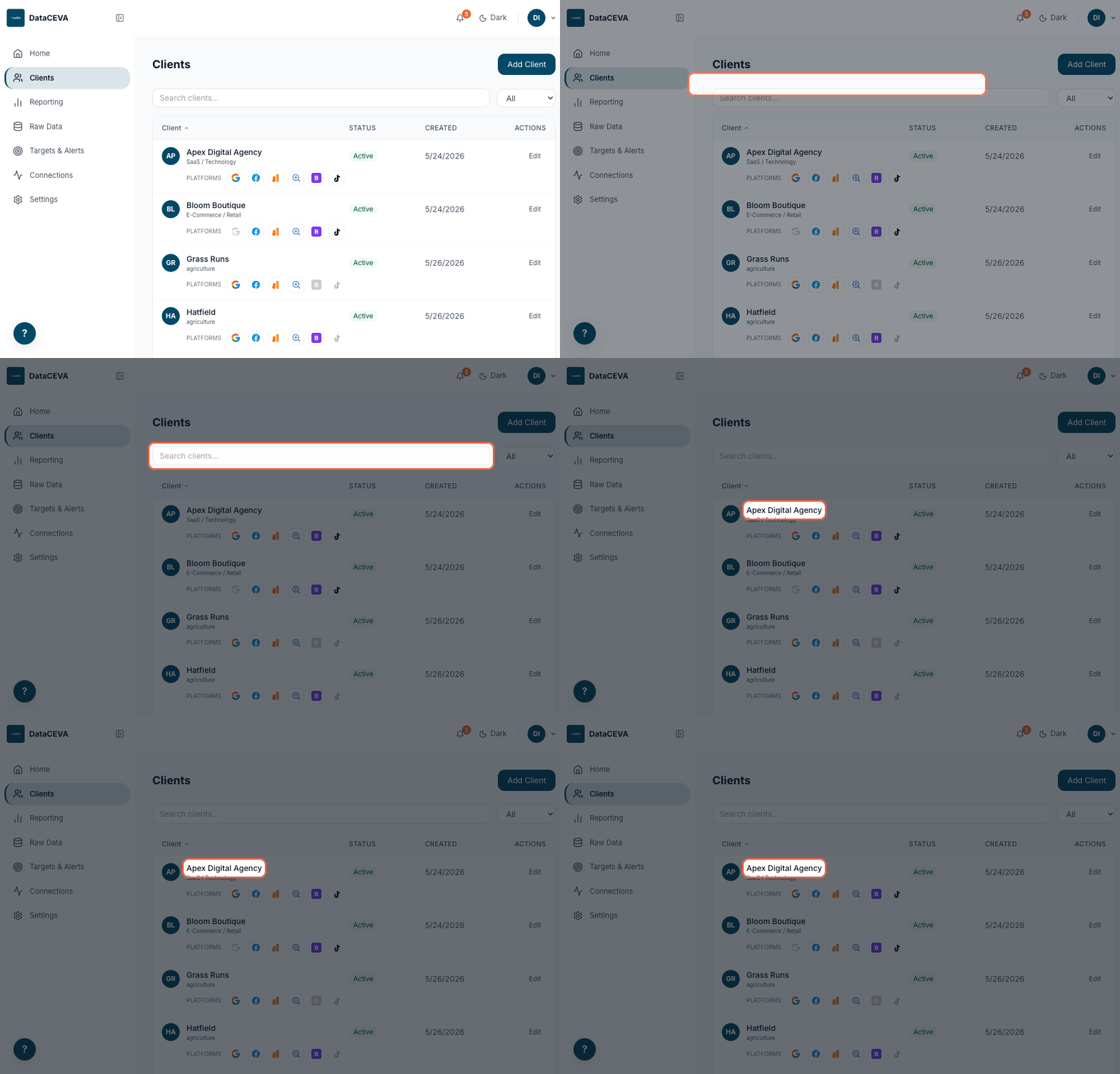
Clients
+ Add Client
Search clients...All ▾
Bloom Boutique· e-commerceActive
Summit Real Estate· real estateActive
Apex Digital· SaaSInactive
Each row also shows platform icon chips (connected platforms in color). Click a row to open the client.
5Clients list
/clients
On screen
Search box and a status filter (All / Active / Inactive / Archived)
Table: Client, Status, Created, Actions, plus a row of platform chips
Members see only their assigned clients
What clicks do
Click a row → /clients/:id (next screen)
+ Add Client / Edit → the client form (admin/manager)
Representative mockup, not a live screenshot
LightAD
← Back to Clients
Bloom Boutique Active
e-commerce
Spend (30d)
$18,400
ROAS
5.1x
Conversions
612
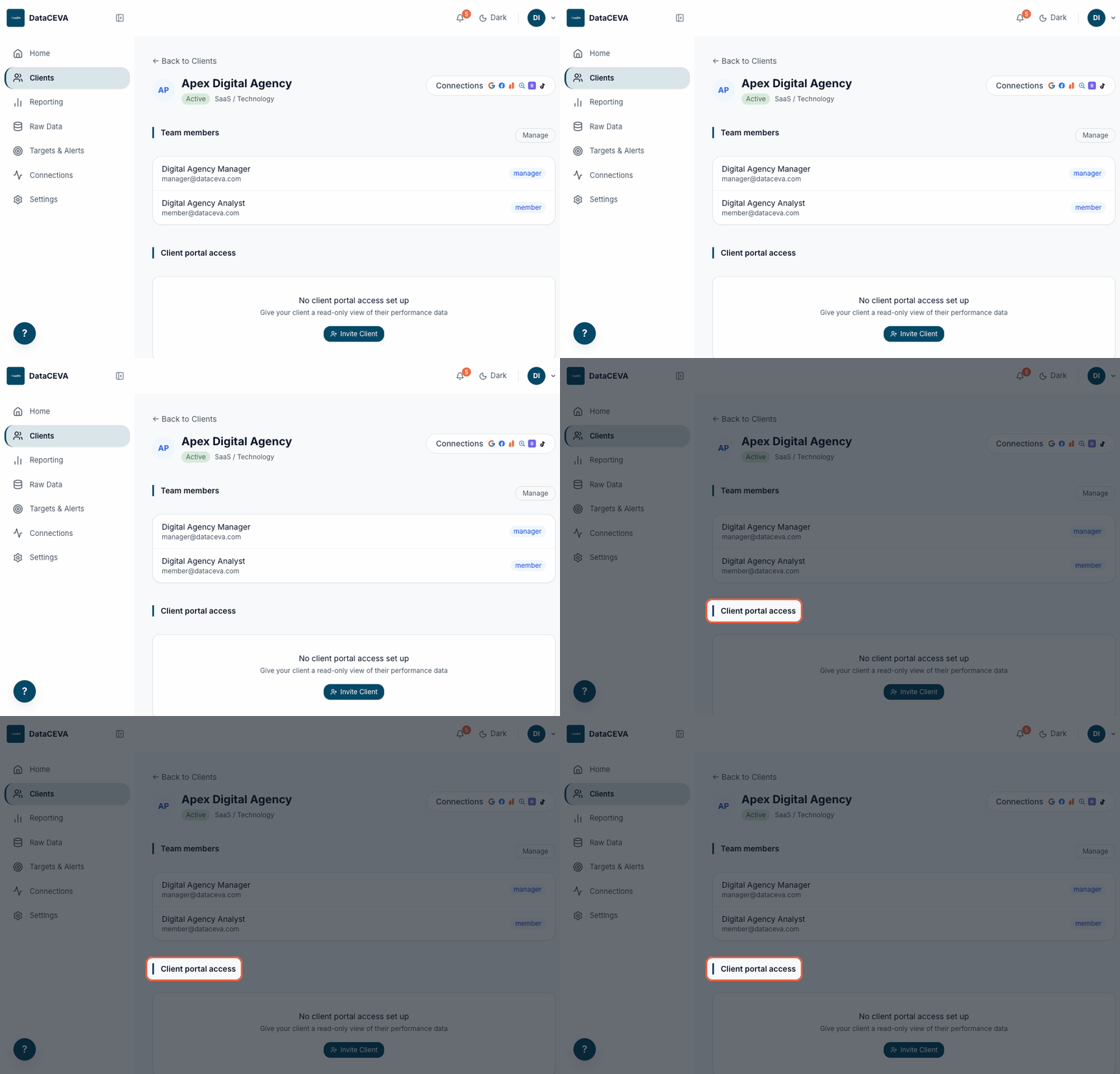
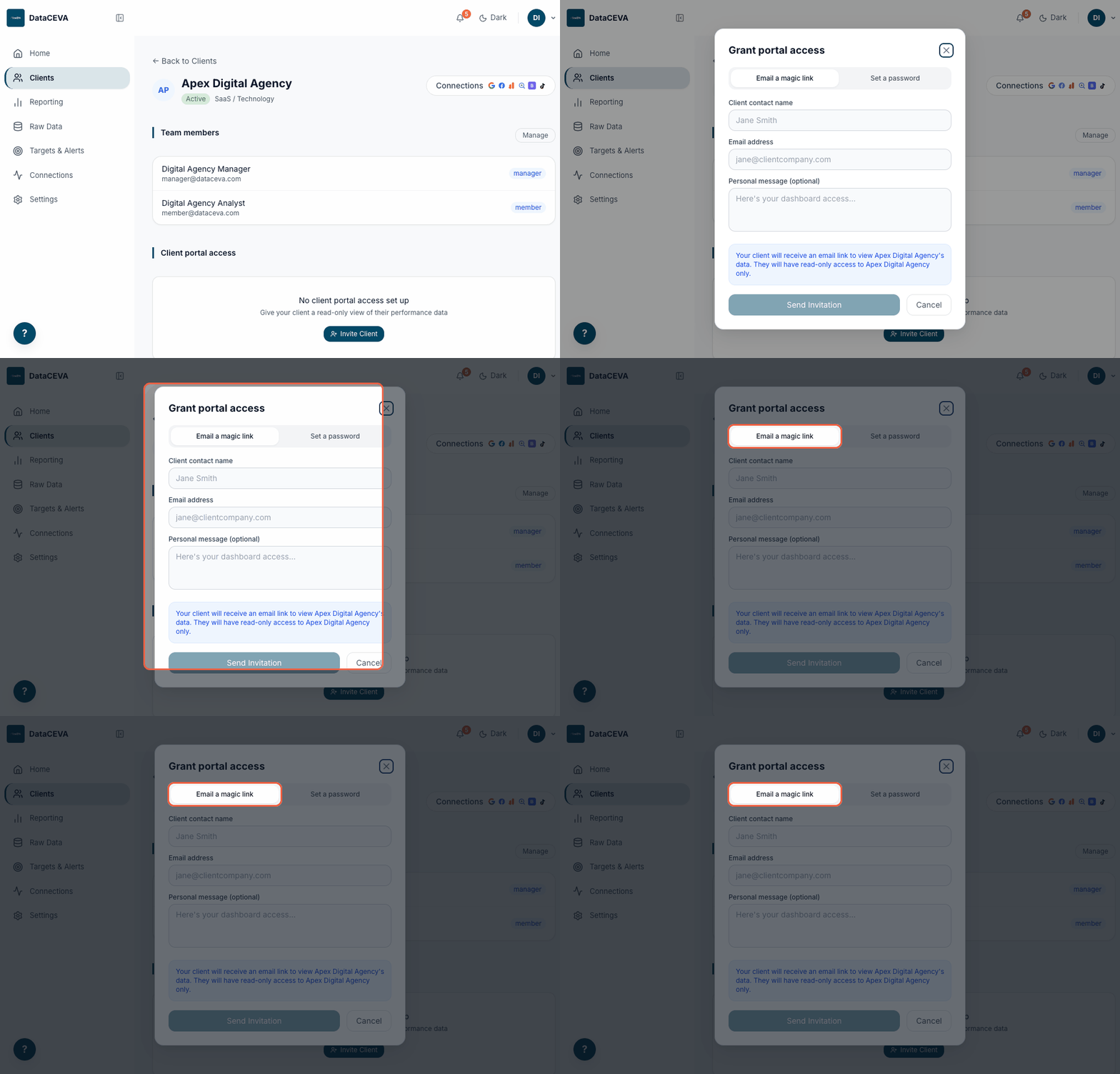
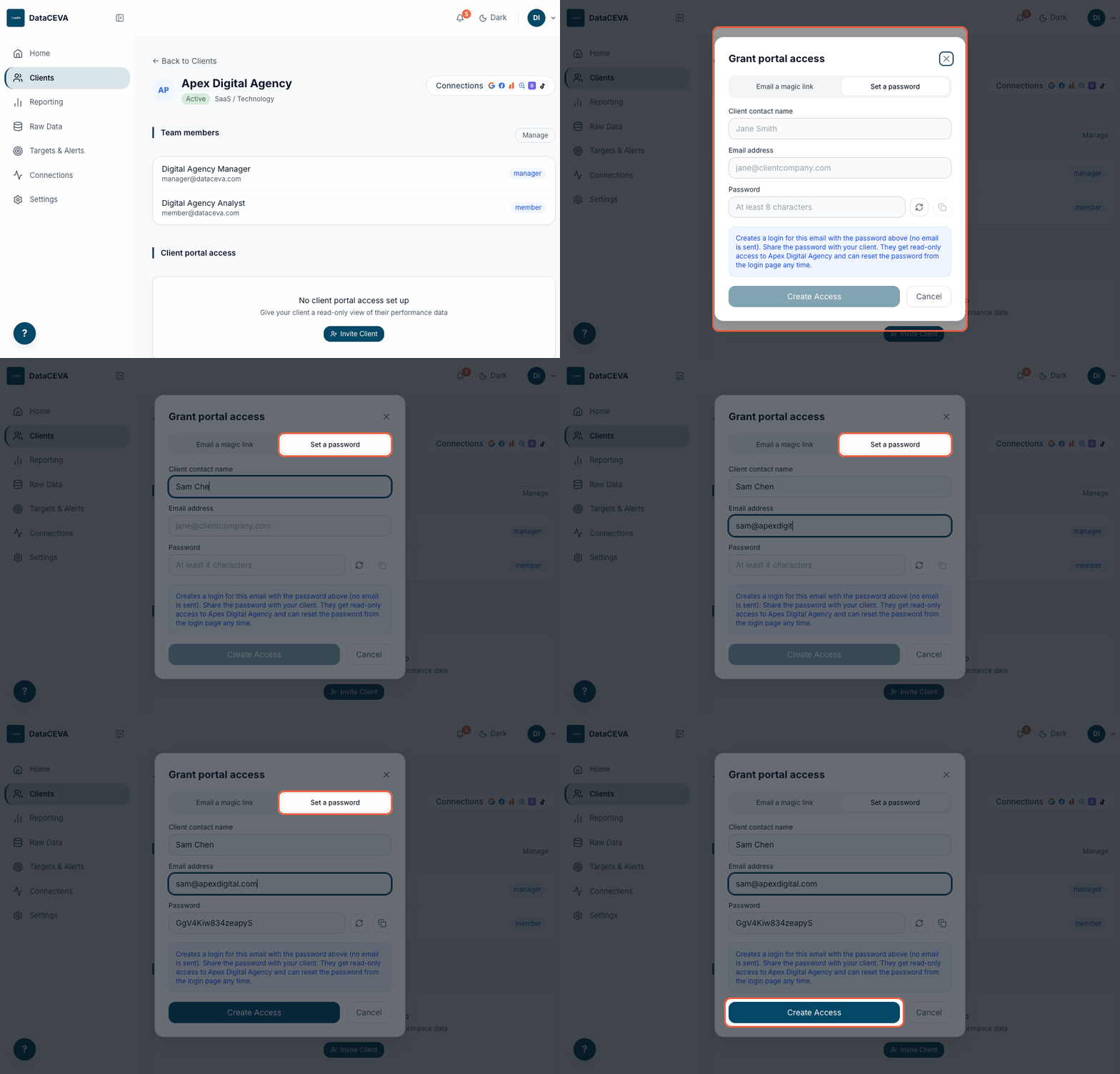
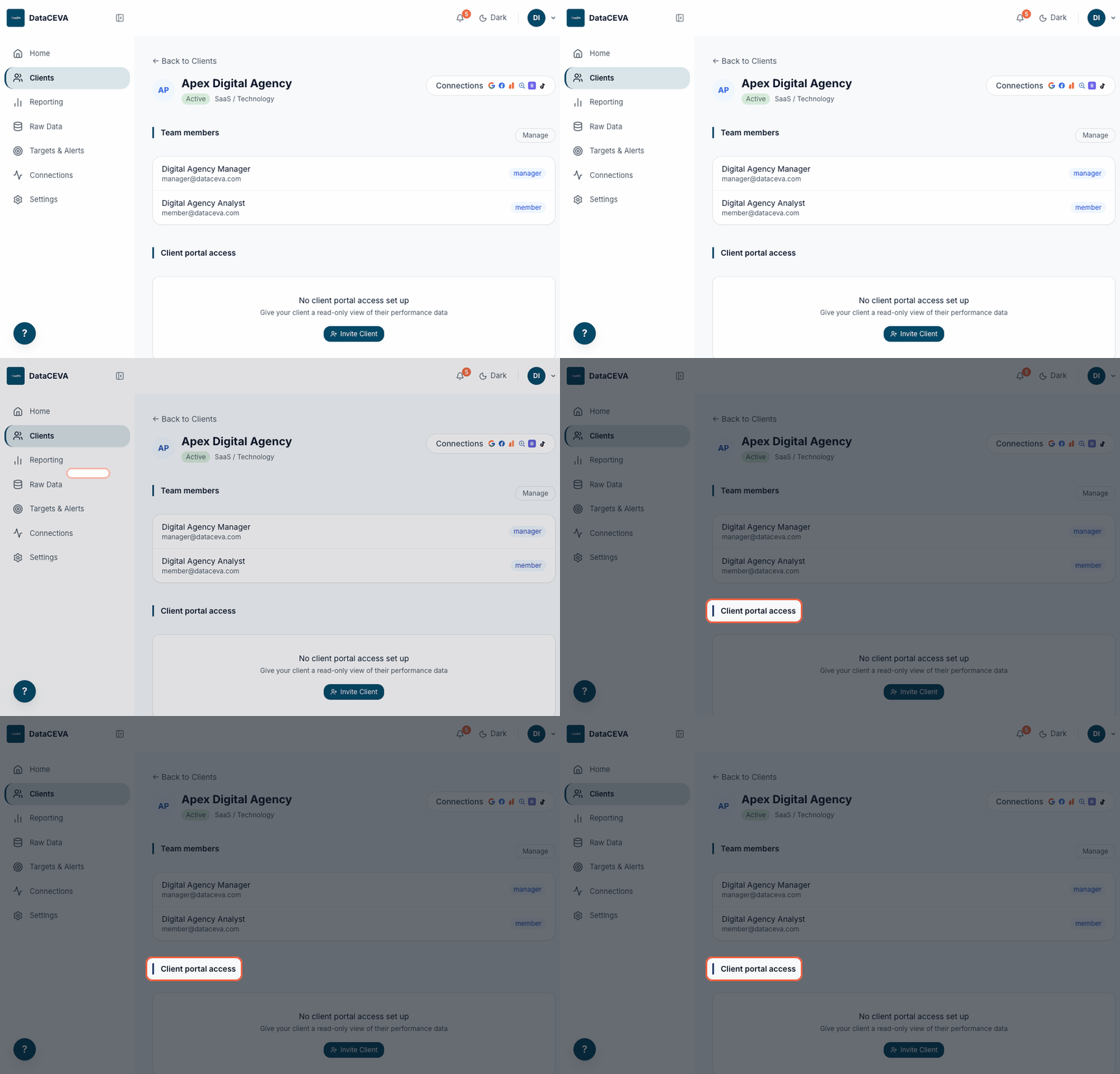
Client portal accessInvite
Jane Smithjane@bloom.comActive
Mark Leemark@bloom.comInvited
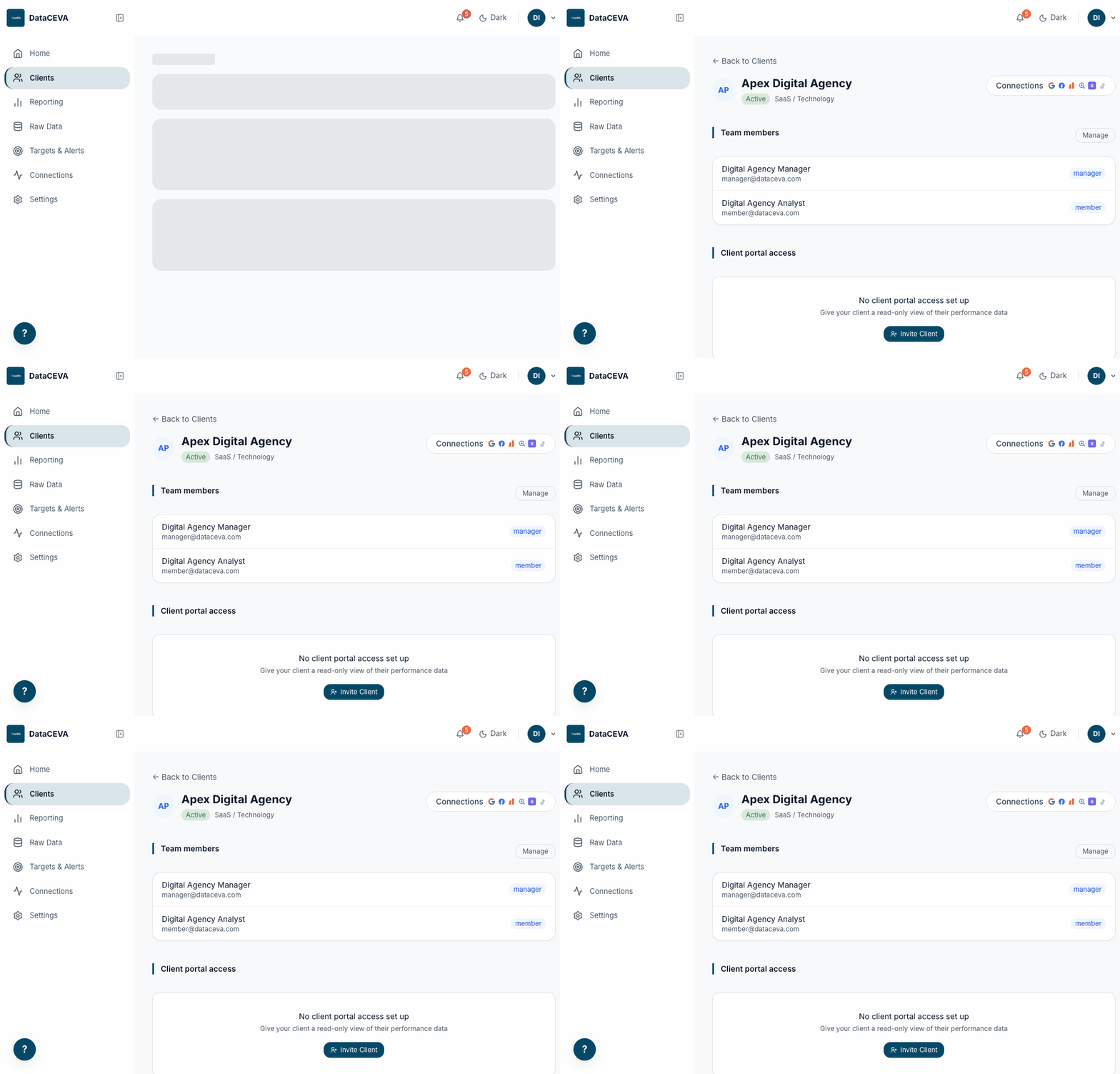
6Client detail
/clients/:id
On screen
Client performance summary and assigned team members
A Client portal access section listing invited clients, their status, and last sign-in ("Not signed in" until they do)
Client contact name, email address, and an optional personal message
A "What your client will see" preview, and a read-only scope note
What clicks do
Send Invitation → validates the email, then shows "Invitation sent to ..."
The client gets an email, sets a password, and lands on their own read-only portal
The new row appears as Invited until they accept
MWhat you can do (by role)
Actions available on the dashboard, and which role can perform each.
Action
Admin
Manager
Member
View Home / KPIs
Yes
Yes
Assigned clients
View Reporting
Yes
Yes
Assigned clients
Generate / schedule reports
Yes
Yes
No
Create targets & alerts
Yes
Yes
Assigned scope
Connect / reconnect platforms
Yes
View only
View only
Invite a client to the portal
Yes
Yes
No
Delete a client's portal access
Yes
No
No
Manage team / assign clients
Yes
No
No
Branding & account settings
Yes
No
No
Live captures: Login, Connections (starting point), Home, and the Invite Client
modal are real screenshots taken against seed (mock) data, so no real client information appears.
Representative mockups: the remaining screens (Connect consent, Select account,
Connected state, Create Target, Alerts tab, Add Alert, Notifications, Reporting, Generate Now,
Schedule, generated report, and Clients list) render through OAuth provider calls or server-side
functions that do not surface seed data in local preview, so they are faithfully reconstructed in
HTML from the real components, field labels, and brand rather than captured. Each is labeled accordingly.