1Connect a platform
Sign in
Enter your email and password, then click Sign In.
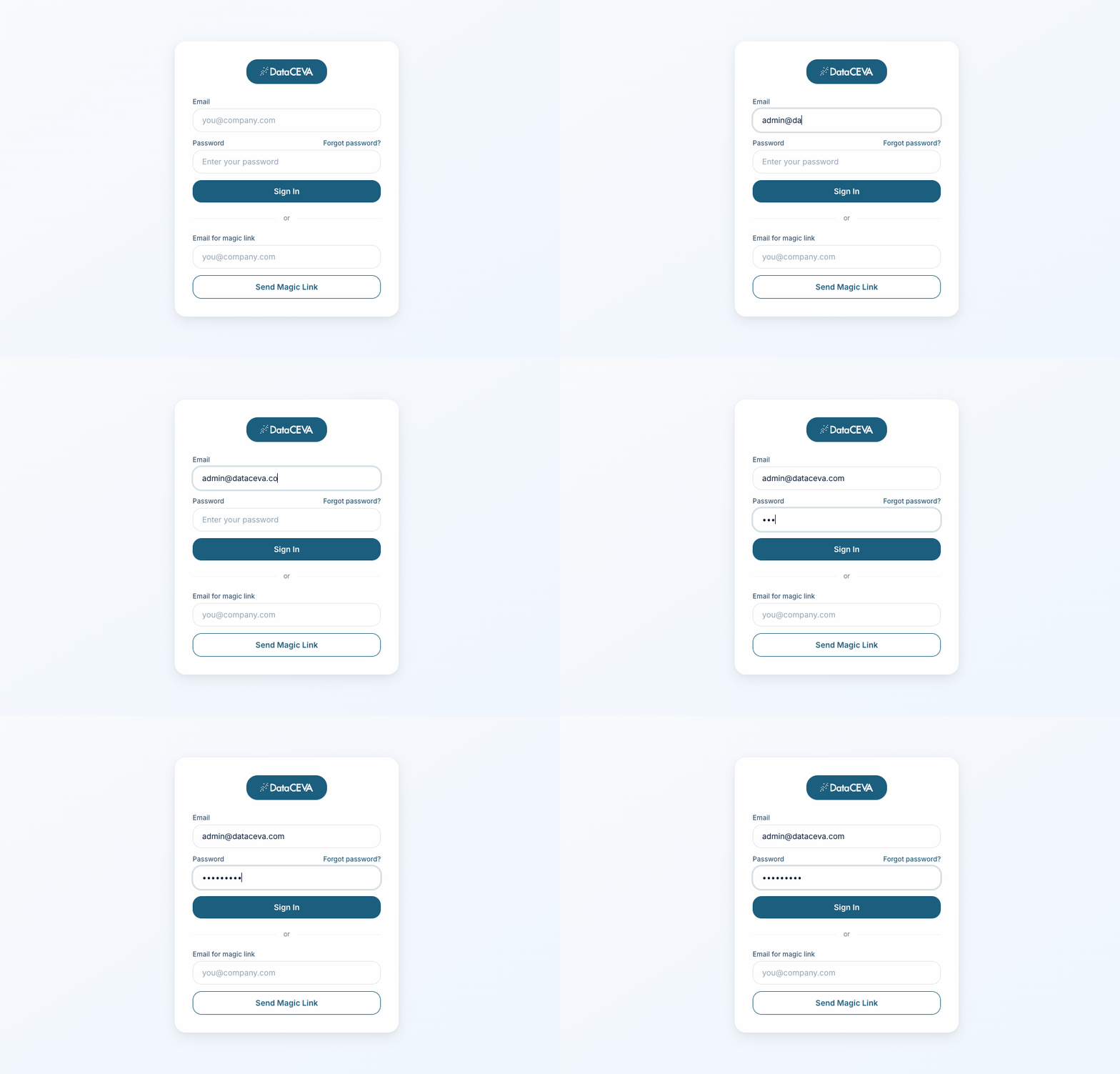
You'll see your agency dashboard.
Open Connections
From the sidebar, open Connections and expand the platform you want.
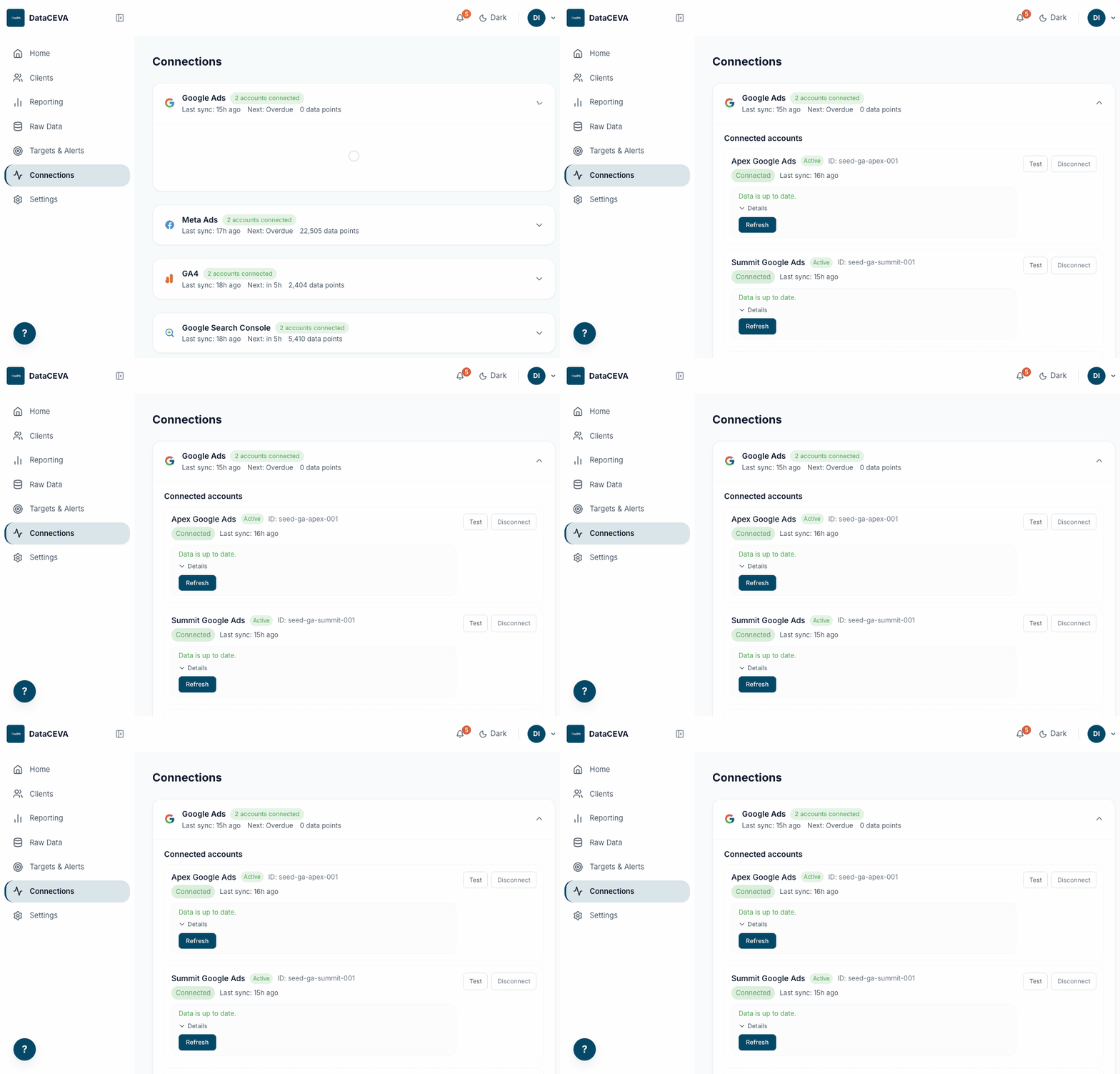
You'll see a card per platform with a green "connected" pill and last-sync time. Already-connected platforms list their accounts.
Start the connect
Click Connect Account (or + Add Account) and review the read-only consent.
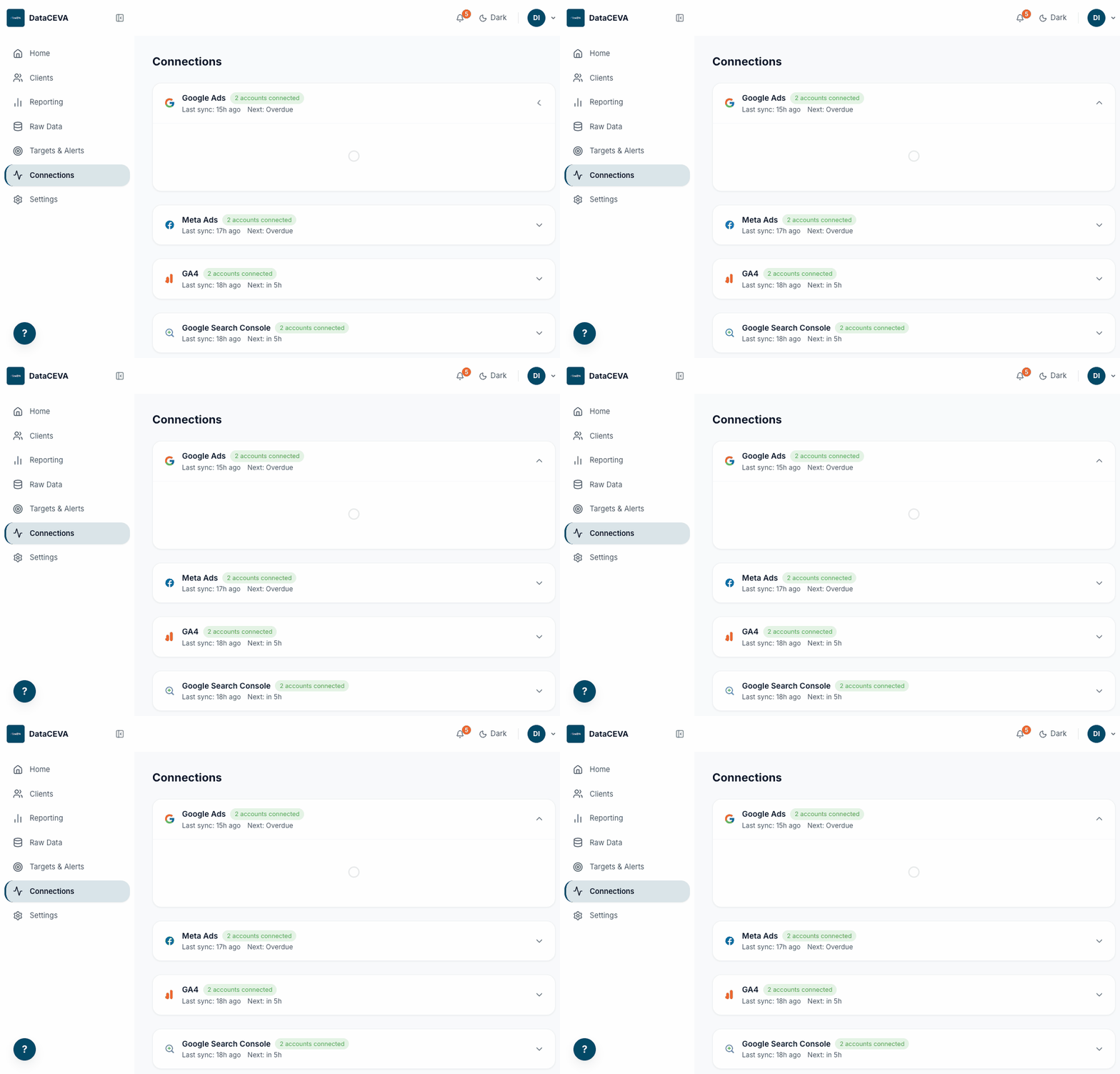
You'll see what will happen and the permissions requested, then one button to continue to the provider.
Authorize, then pick the account
Sign in at the provider, then choose which account to connect and confirm.
You'll see the dashboard return to Connections; the first sync starts automatically and the account turns "Connected".
2Set targets & alerts, then monitor
Open Targets & Alerts
Open Targets & Alerts to see your goals and their status dots.
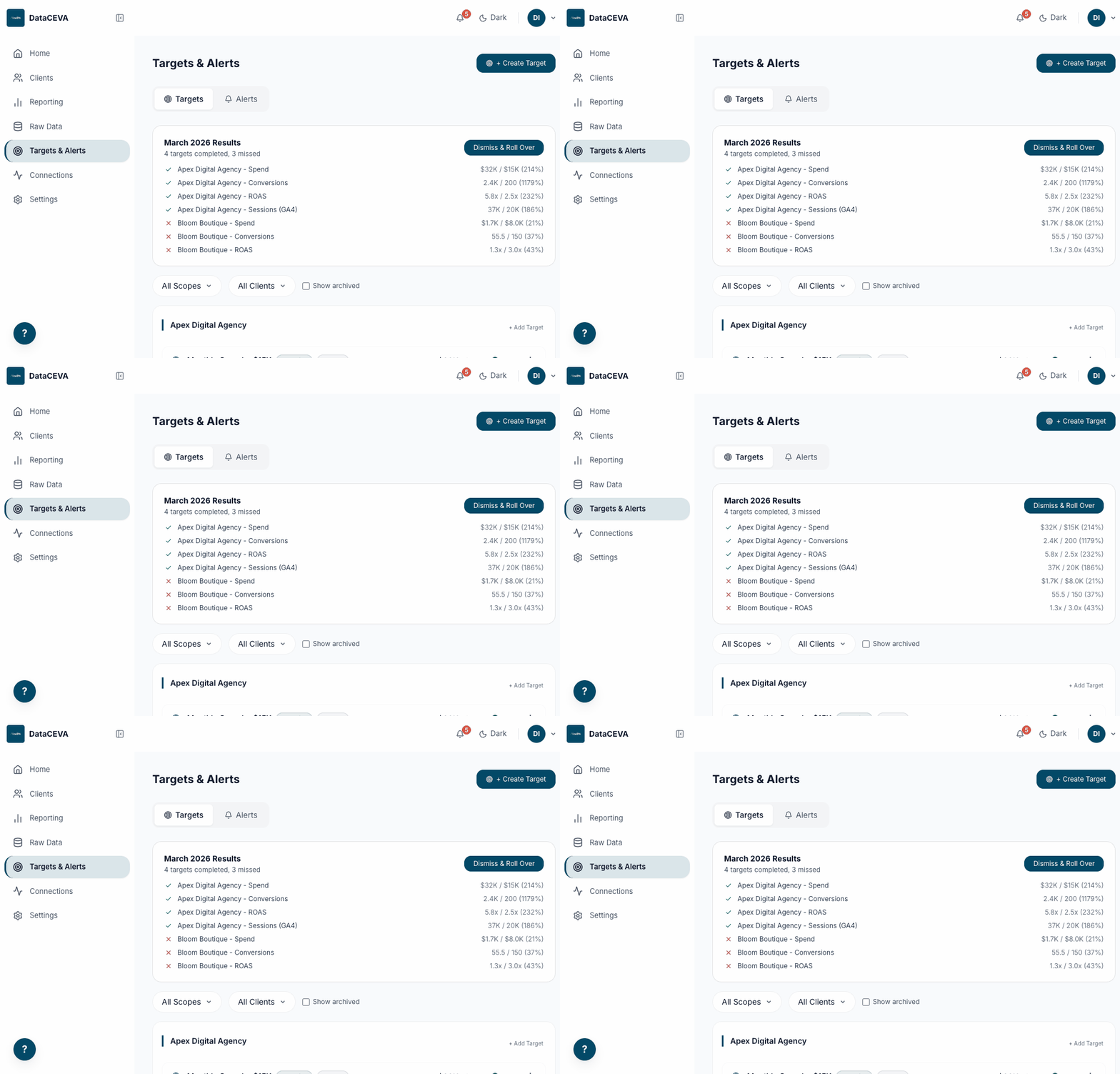
You'll see targets grouped by client, each showing actual vs goal and a green (on track) or red (behind) dot.
Create a target
Click + Create Target, then set scope, platform, metric, condition, and value.
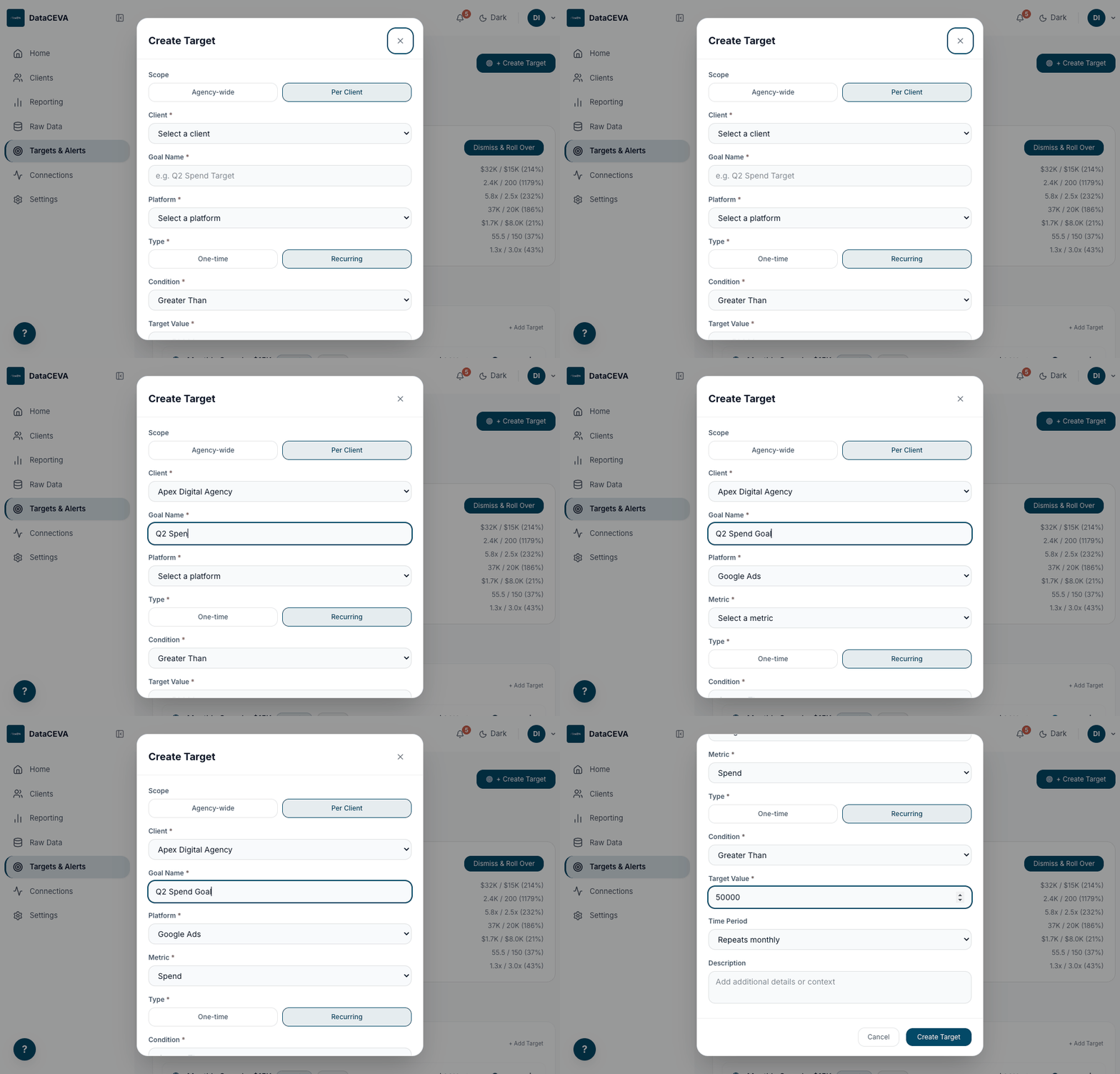
You'll see the new target appear in the list with its status dot.
Open the Alerts tab
Switch to the Alerts tab to see your threshold rules.
You'll see a table of rules: client, platform, the rule (e.g. "cpc > 5"), and status.
Add an alert
Click + Add Alert, then choose platform, metric, condition, value, and how often to check.
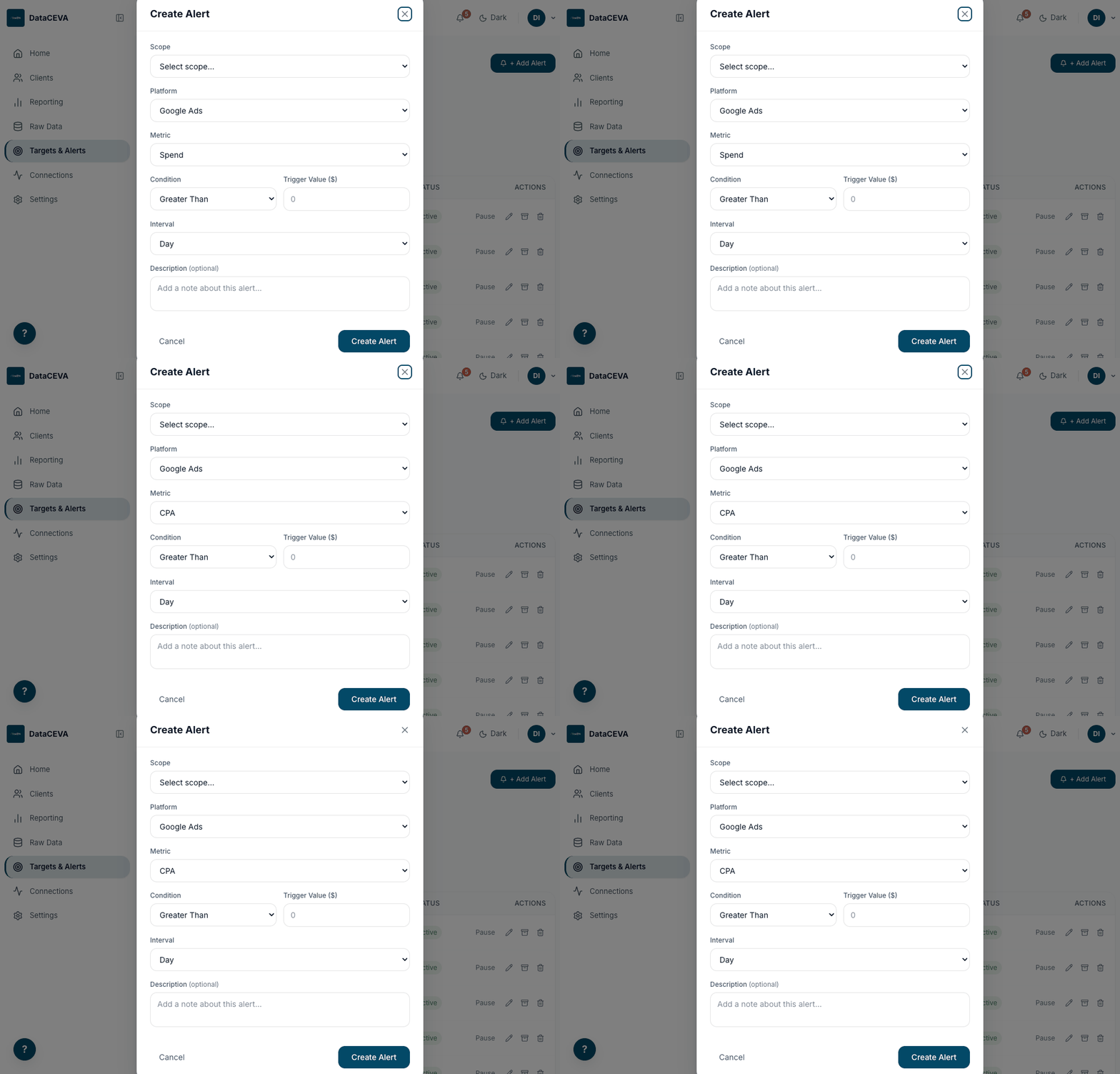
You'll see the rule added; it starts checking on its interval and notifies you when breached.
Monitor on Home
Go to Home and watch your KPIs against the goals you just set.
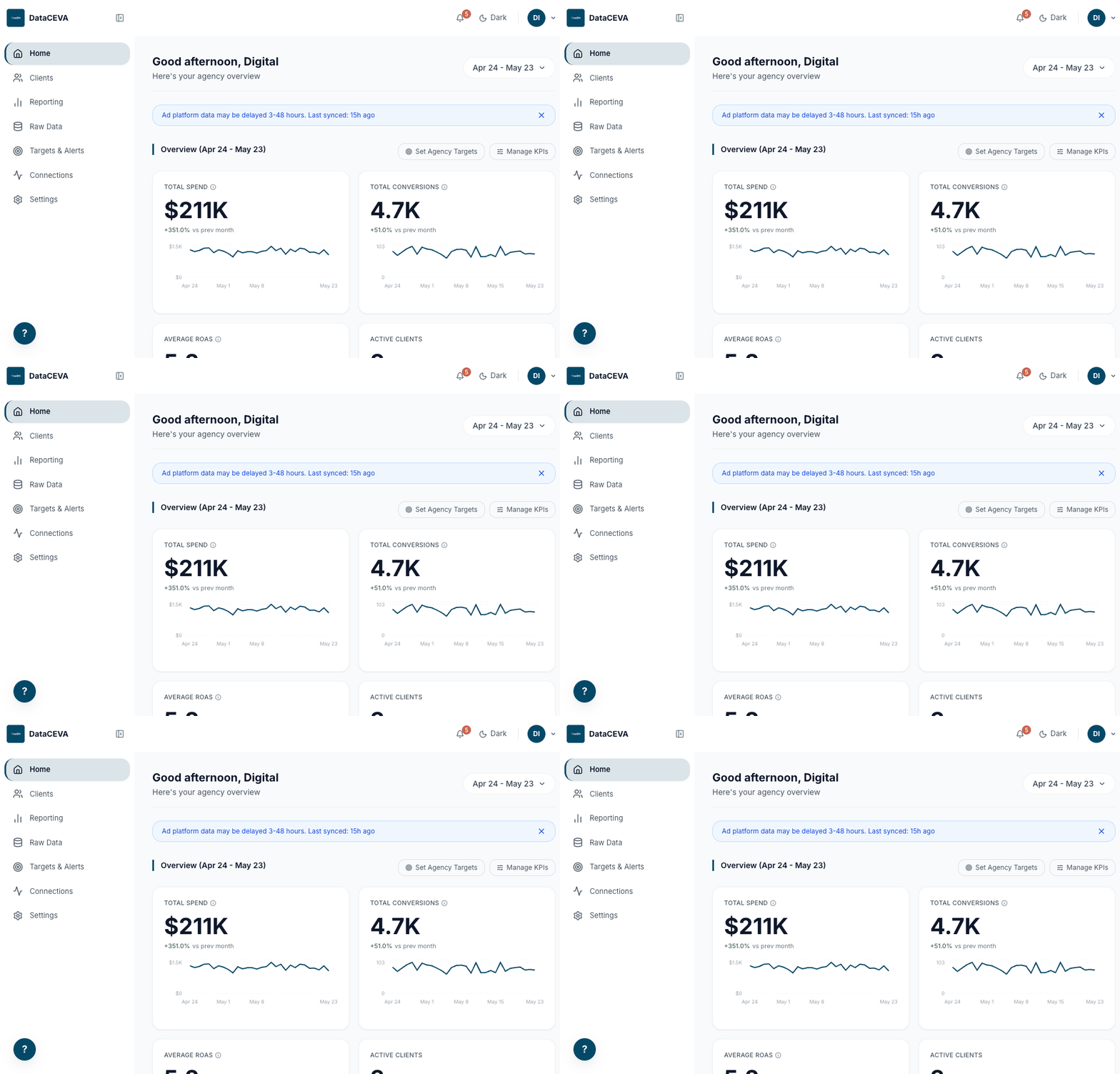
You'll see spend, conversions, ROAS and more with trend lines and vs-last-month deltas.
Act on a fired alert
Open the bell in the top bar to read fired alerts; click View to jump to the rule.
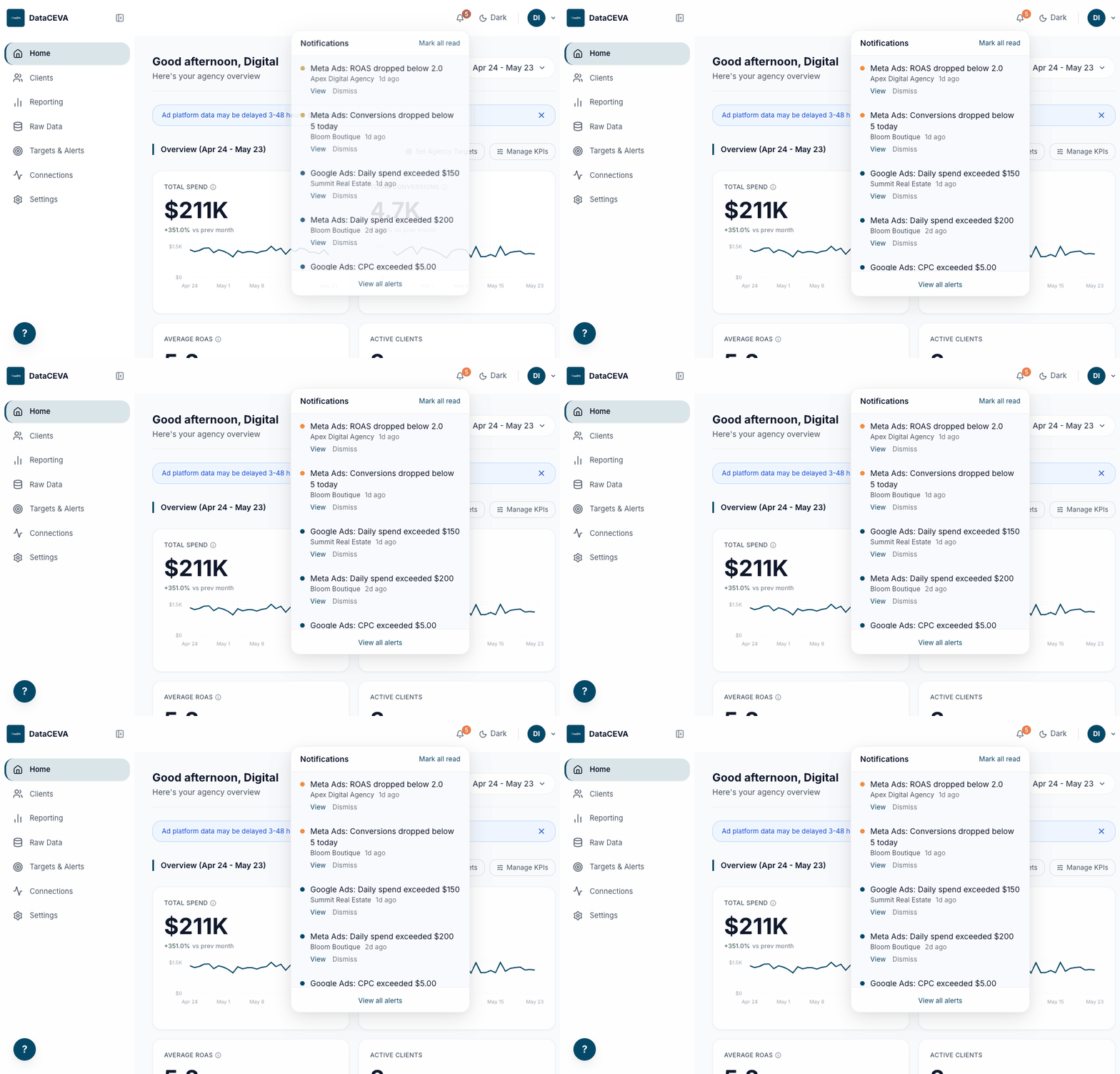
You'll see each alert with its message, client, and time, plus View and Dismiss.
3Build & share a client report
Open Reporting & pick a client
Open Reporting and choose a client from the filter (this enables Generate).
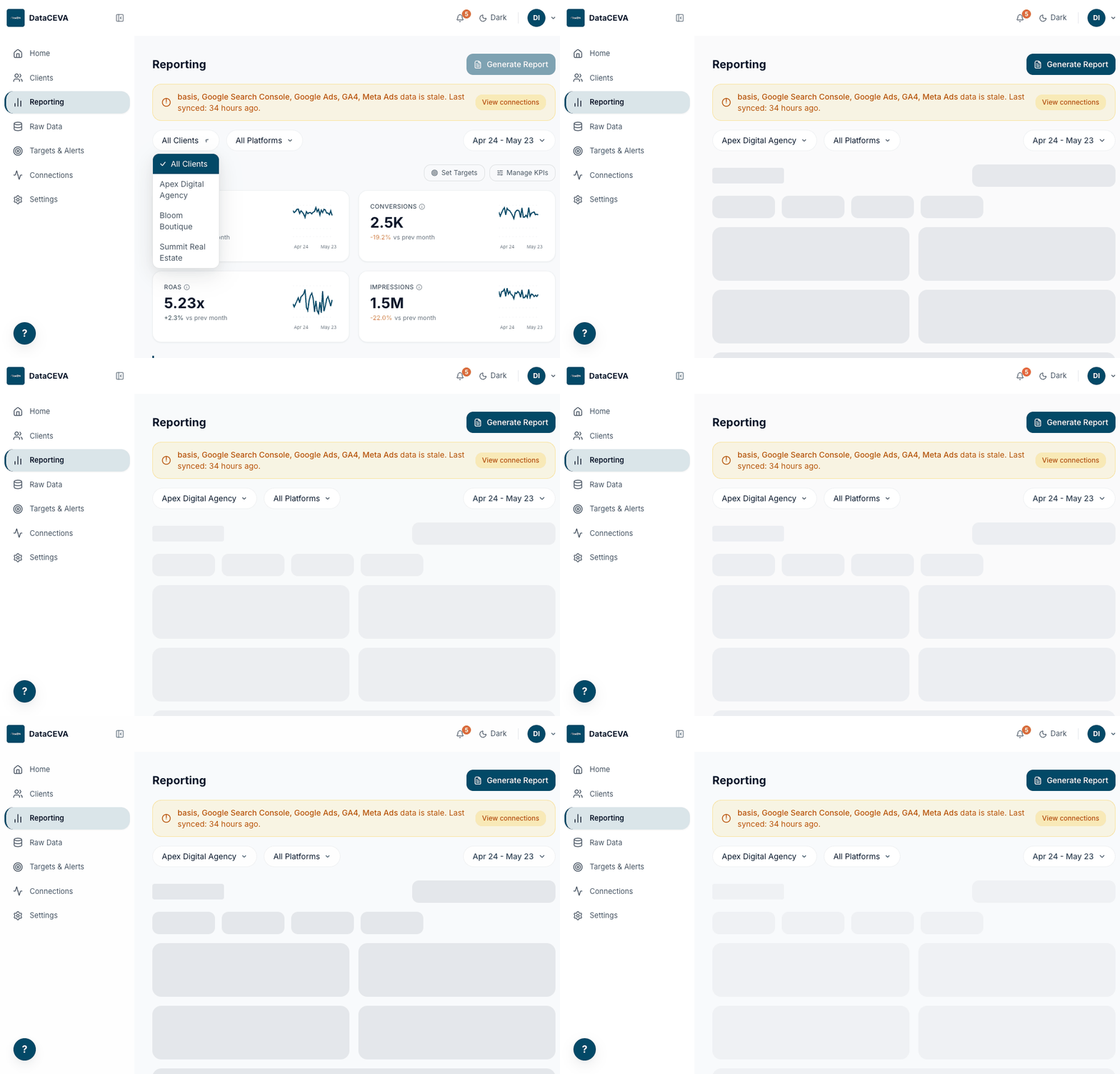
You'll see that client's metrics, charts, and per-platform scorecards update.
Generate it now
Click Generate Report, choose the sections to include and a delivery method.
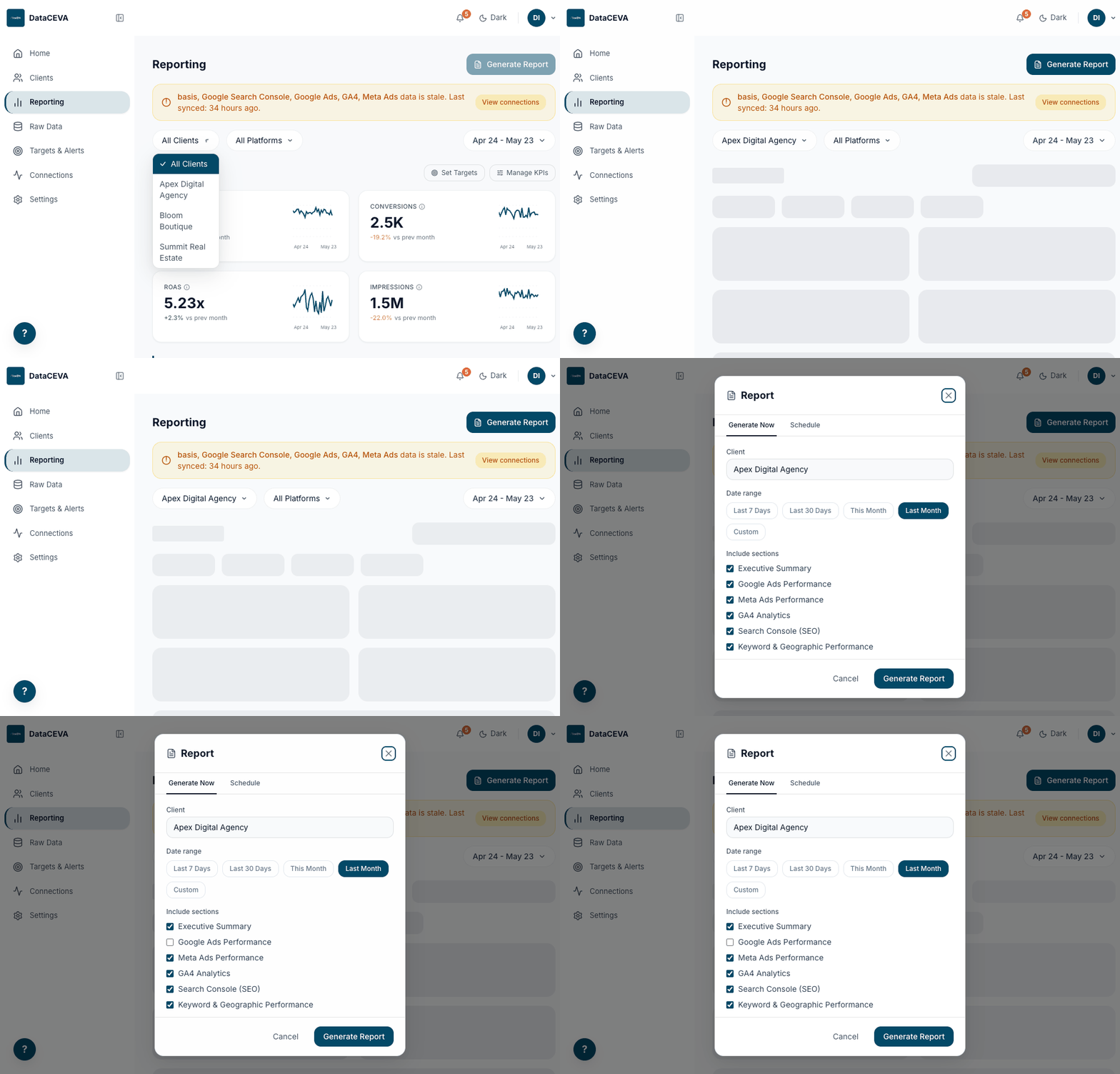
You'll see the report open in a new tab (browser) or download as a PDF.
Or schedule it
Switch to the Schedule tab to send a recurring PDF automatically.
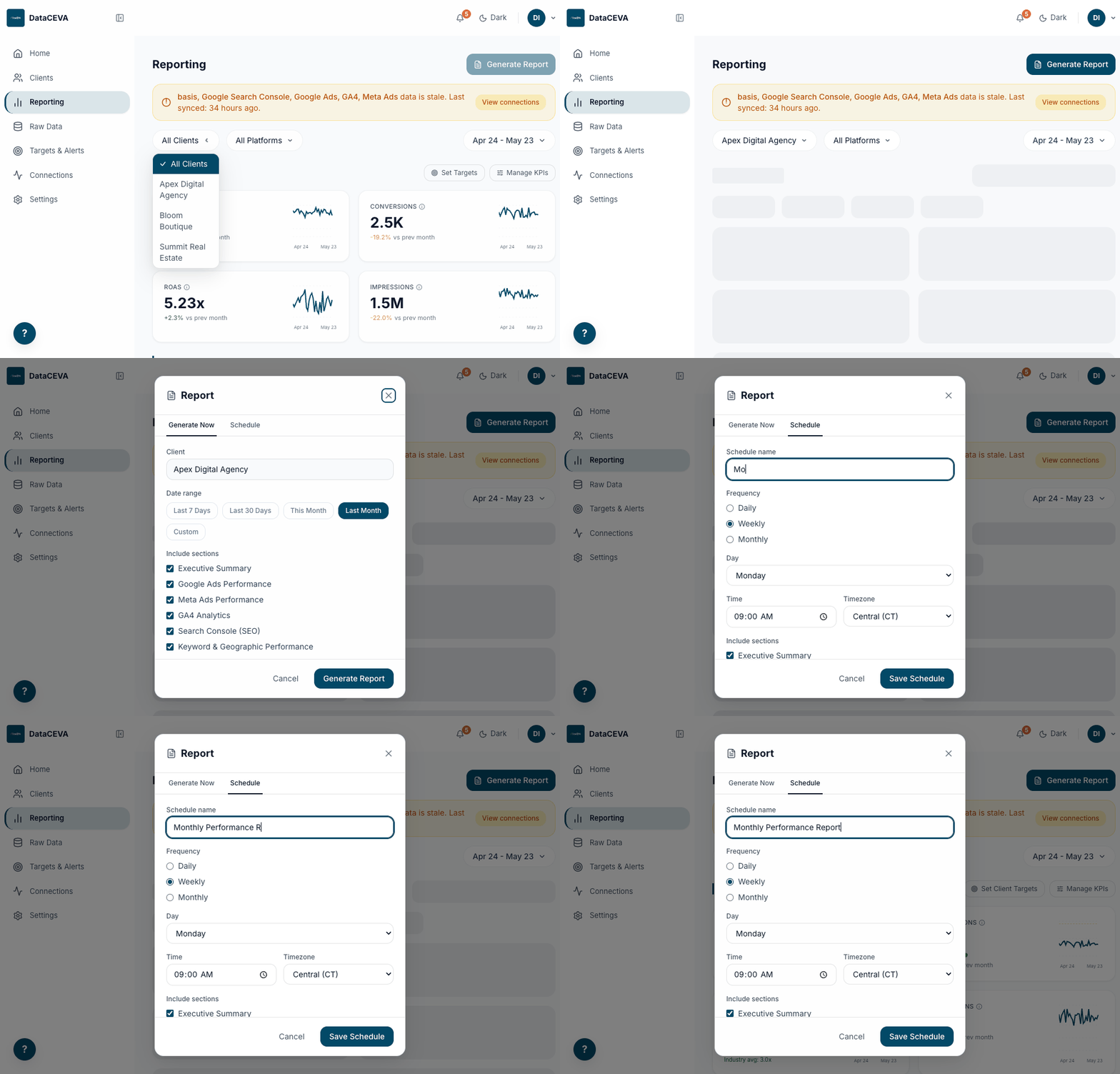
You'll see name, frequency, time, sections, and recipients; Save Schedule sets it running.
Review the report
The report opens white-labeled with your agency's logo and colors. Use Print / Save as PDF to export.
You'll see a clean, client-ready document with no "Agency OS" branding anywhere.
Open the client
Go to Clients and open the client you want to give access to.
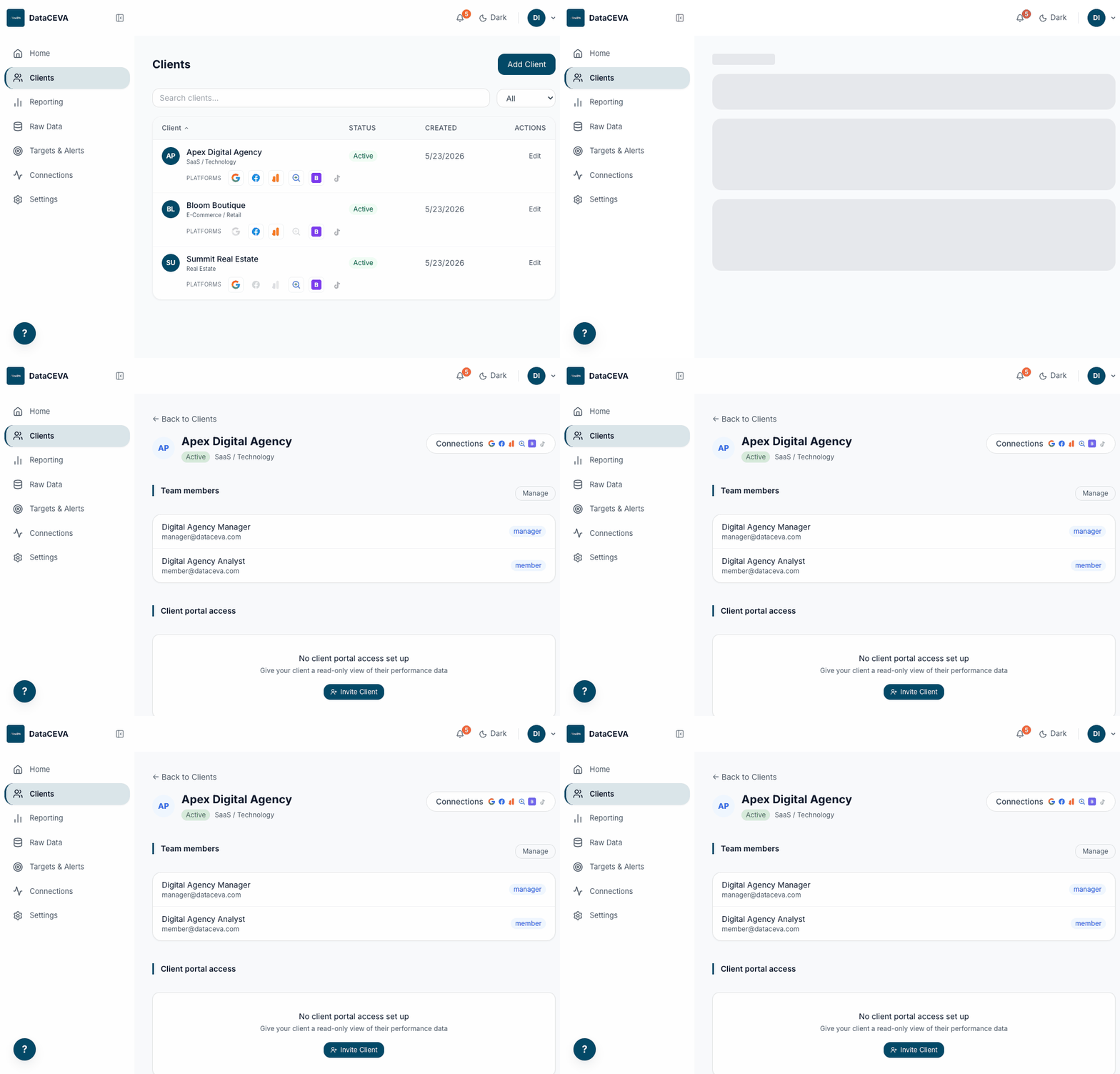
You'll see the client's summary, team members, and a Client portal access section.
Invite to the portal
Click Invite Client, enter their name and email, and send.
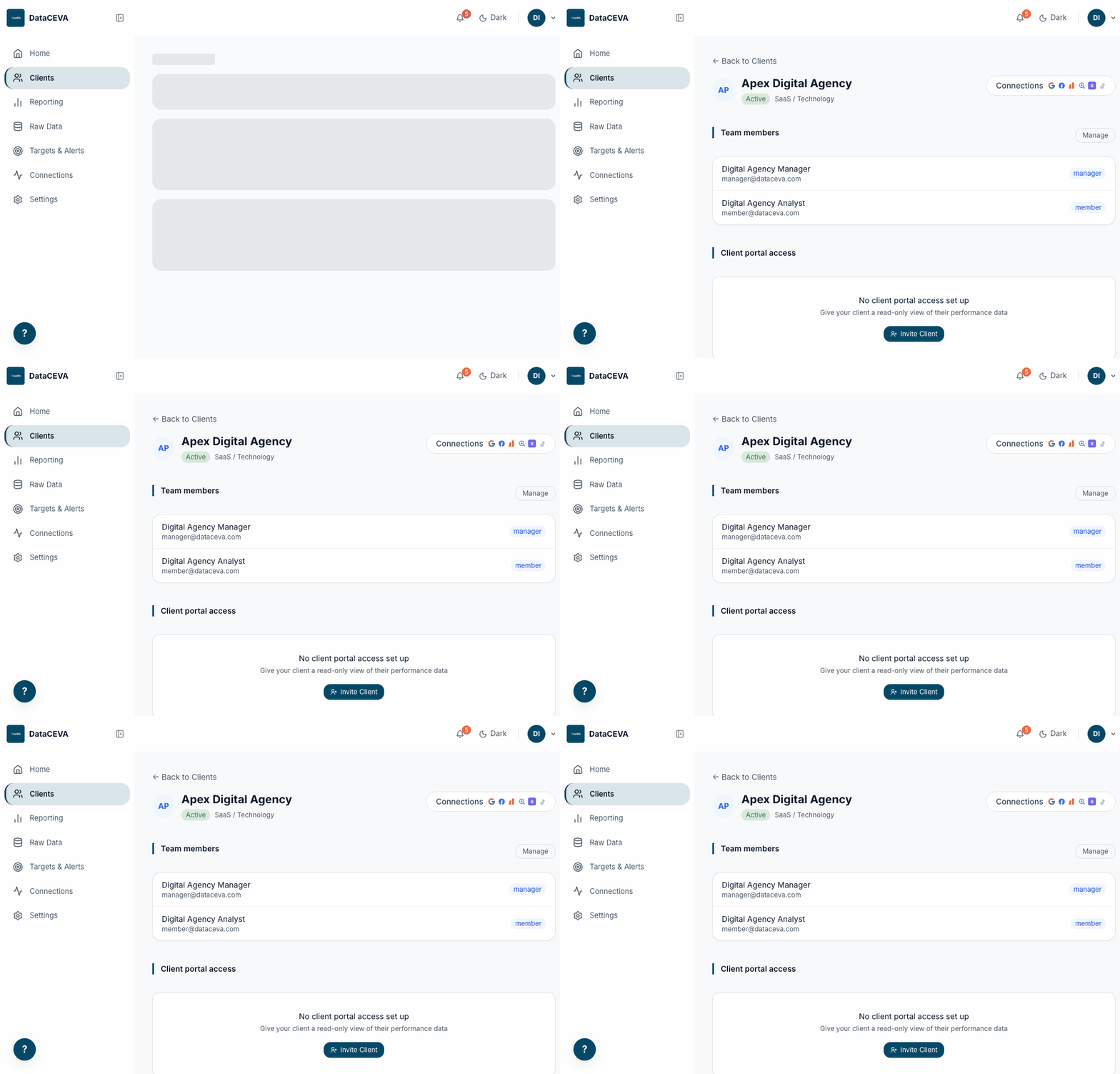
You'll see "Invitation sent". They get an email, set a password, and land on their own read-only portal.
4Onboard a client to the portal
Open the client
Go to Clients and click the client you want to give portal access to.
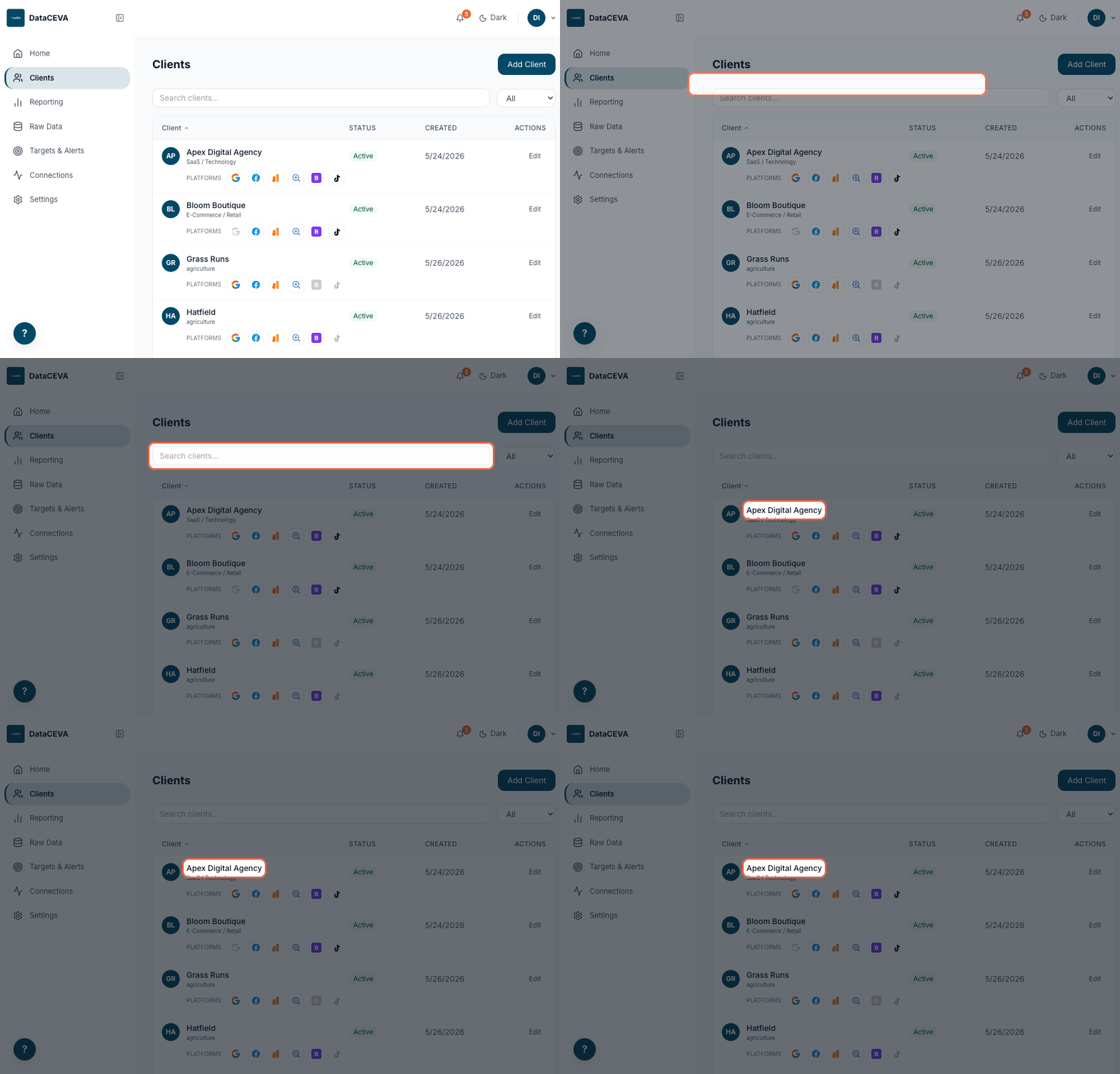
You'll see the client list; click any row to open the client detail page.
Find the portal access section
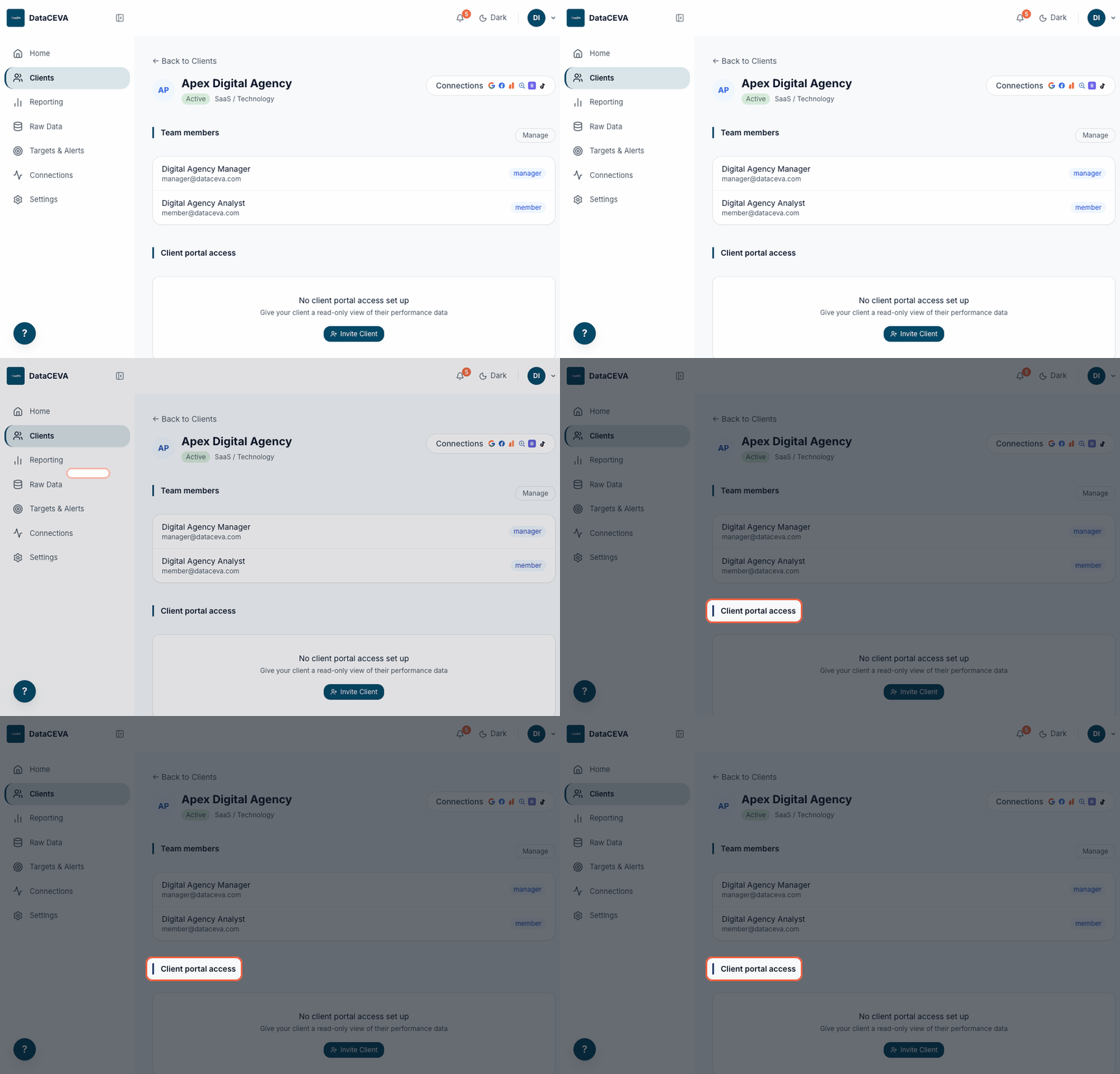
On the client detail page, scroll down to Client portal access.
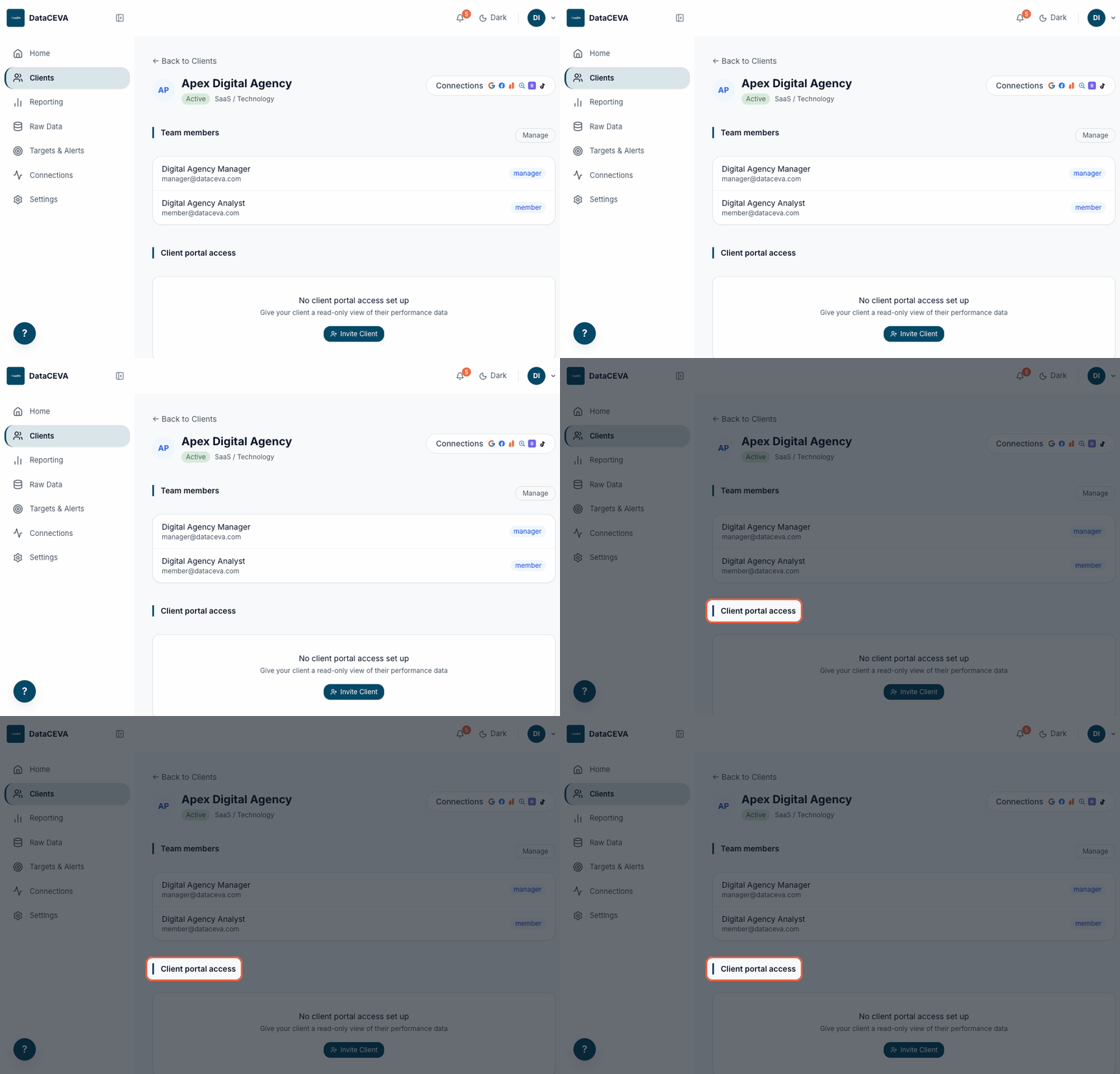
You'll see an empty panel with an Invite Client button, or existing portal contacts if any are already added.
Open the invite modal
Click Invite Client to open the Grant portal access dialog.
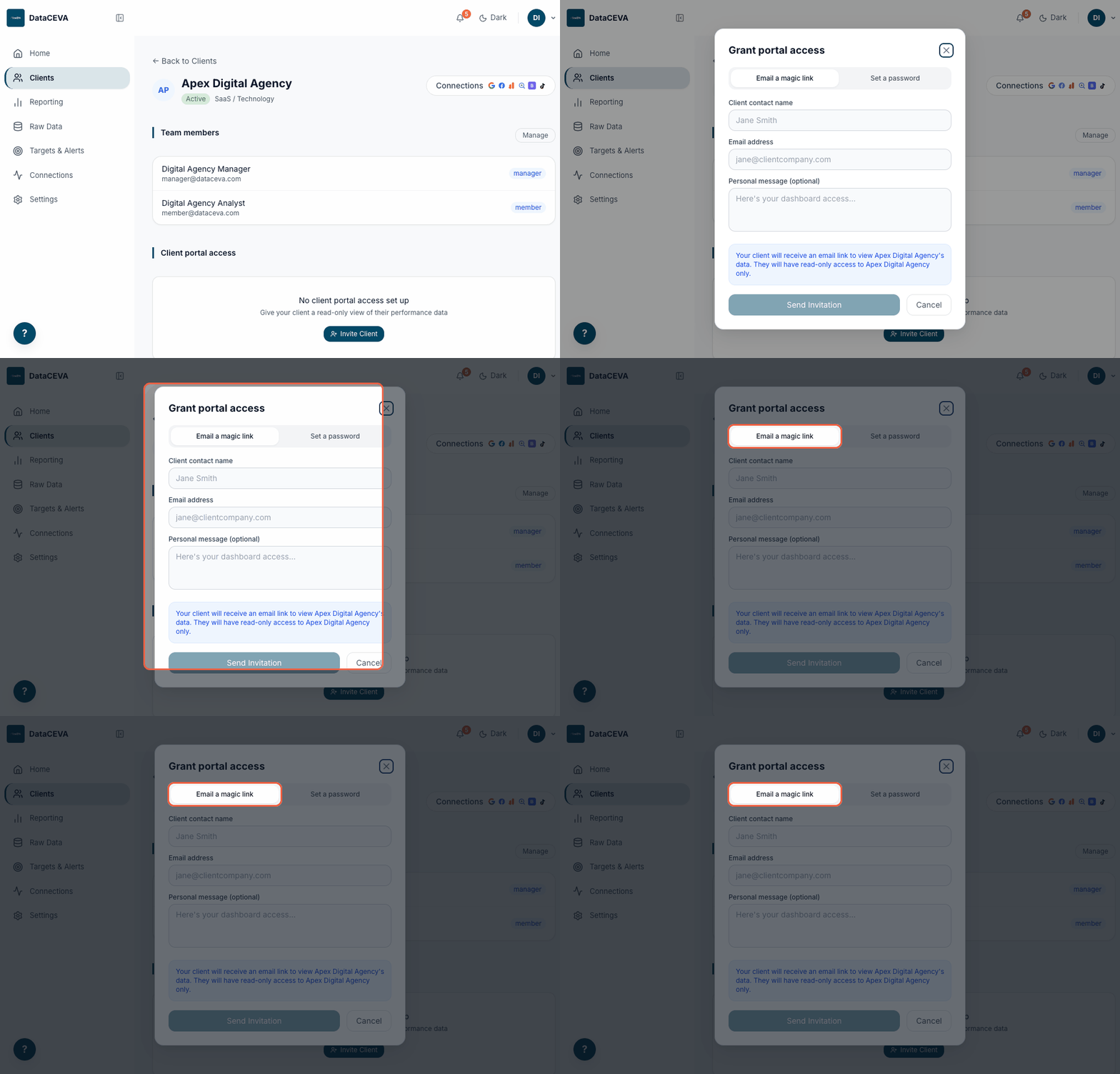
You'll see two access methods: Email a magic link (default) and Set a password.
Option A: Send a magic link
On the Email a magic link tab, enter the contact's name, email, and an optional message, then click Send Invitation.
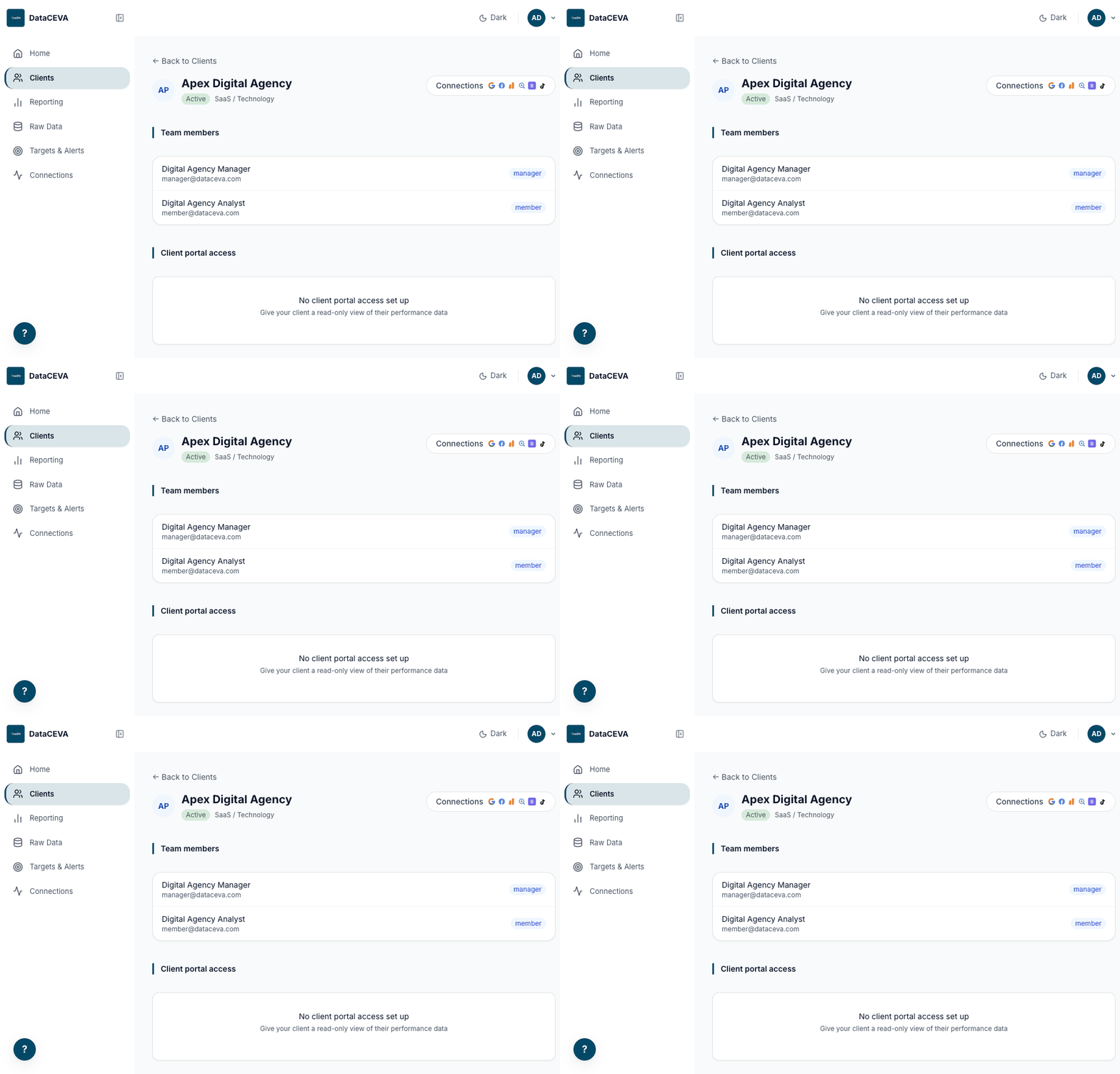
You'll see "Invitation sent". The client gets an email with a one-click sign-in link. No password to manage.
Option B: Set a password
Switch to Set a password, enter name and email, click the refresh icon to generate a strong password, then click Create Access.
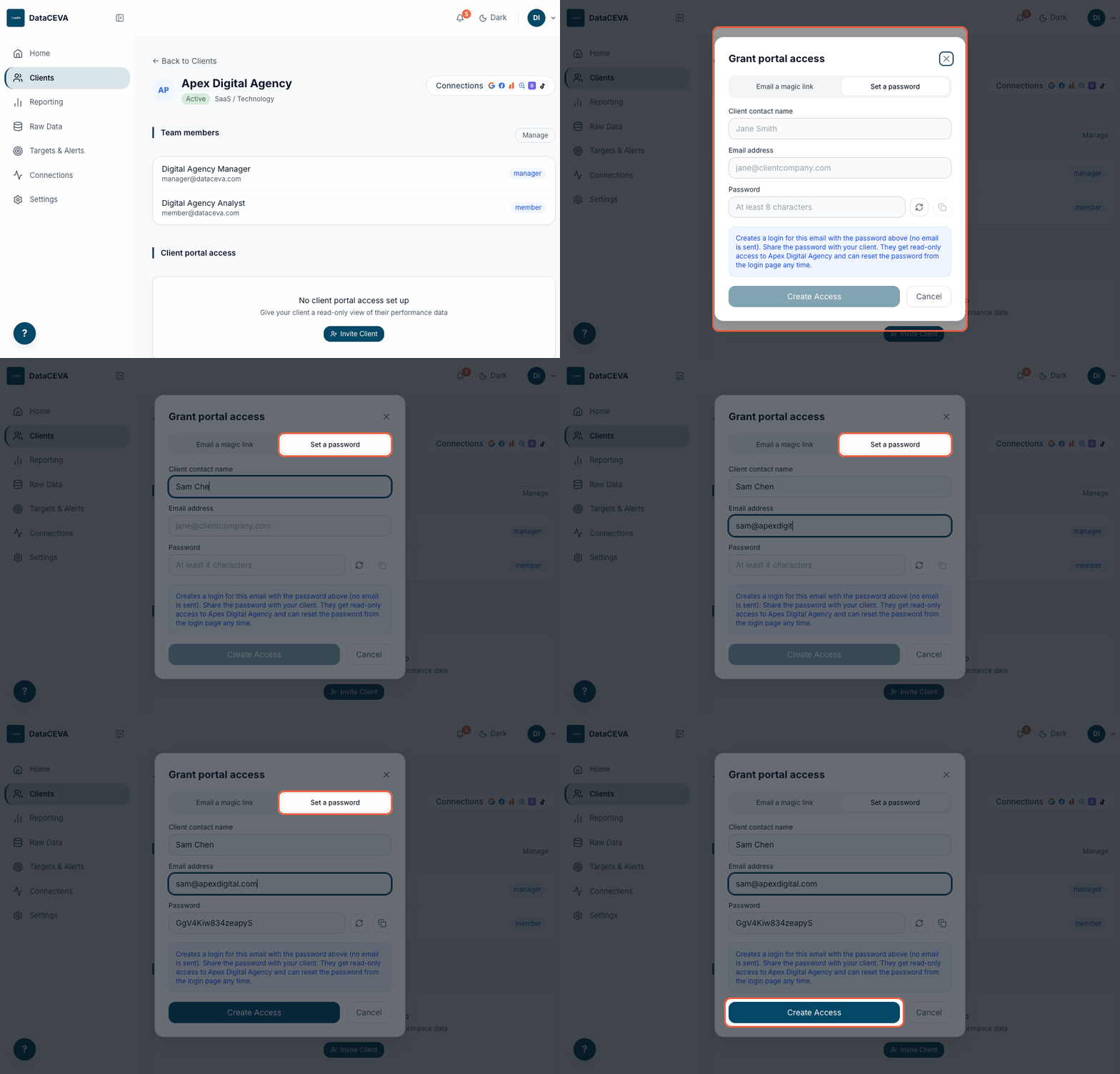
You'll see the generated password ready to copy. No email is sent; share it directly with your client.
Confirm access is granted
Close the modal and check the Client portal access panel.
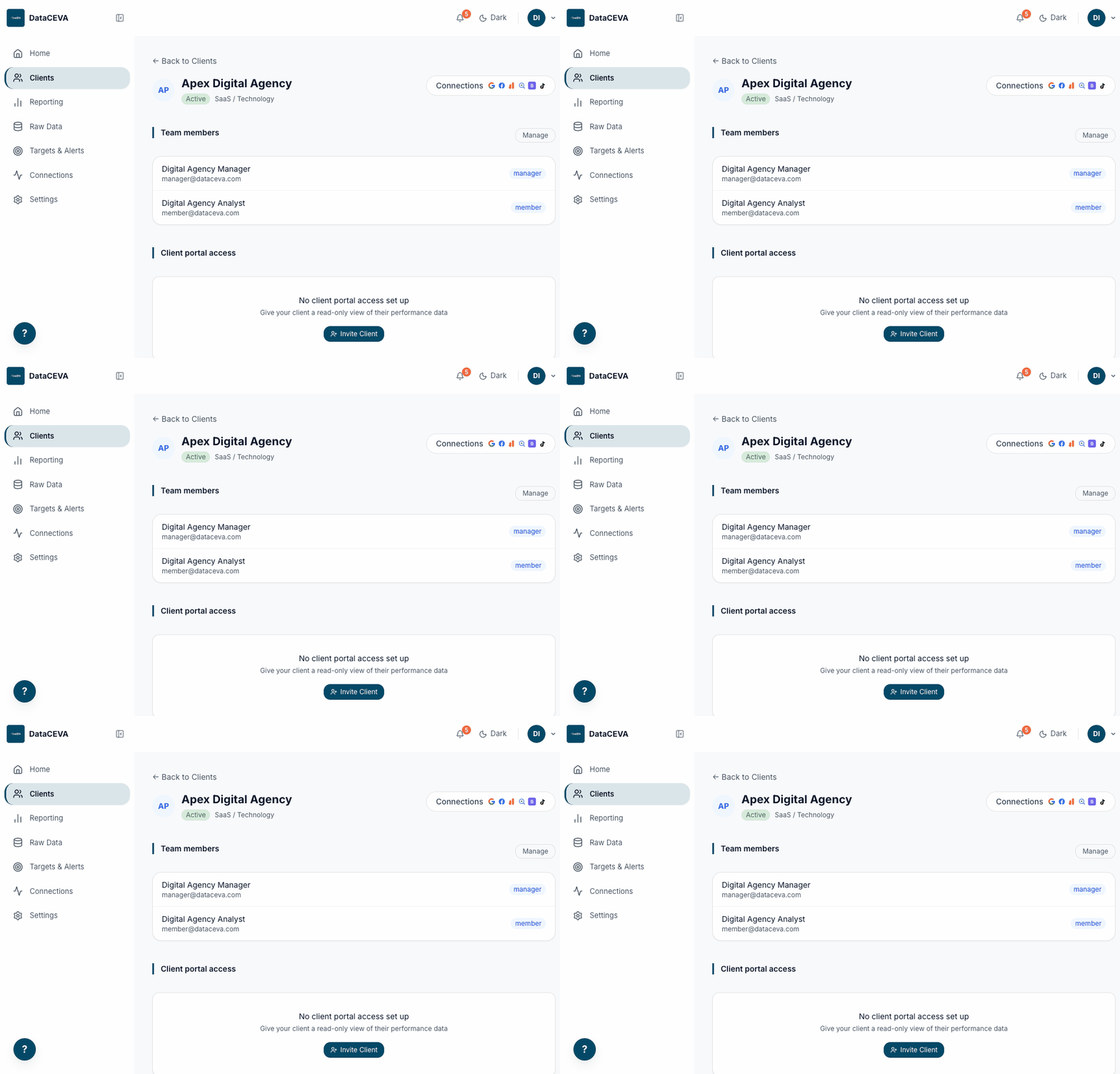
You'll see the contact row with an Invited badge (waiting for first login) or Active once they sign in, plus their last login time.
Revoke access
Click the ... menu next to the contact and choose Delete access.
You'll see the contact removed instantly. They can no longer sign in to the portal.
RWho can do what
Admin
Everything, plus Settings: connect platforms, manage the team, control portal access.
Manager
All clients, reports, targets, and client invites. No Settings.
Member
Only assigned clients. View and report; no team or settings.
| Action | Admin | Manager | Member |
|---|---|---|---|
| View Home & Reporting | Yes | Yes | Assigned |
| Generate / schedule reports | Yes | Yes | No |
| Create targets & alerts | Yes | Yes | Assigned |
| Connect / reconnect platforms | Yes | View only | View only |
| Invite a client to the portal | Yes | Yes | No |
| Manage team & settings | Yes | No | No |